> ## Documentation Index
> Fetch the complete documentation index at: https://docs.aiinsurance.io/llms.txt
> Use this file to discover all available pages before exploring further.
# Create an Event
Take the following steps to create an event:
1. Navigate to the **Events** page by clicking the **Events** tab on the navigation bar by the left.
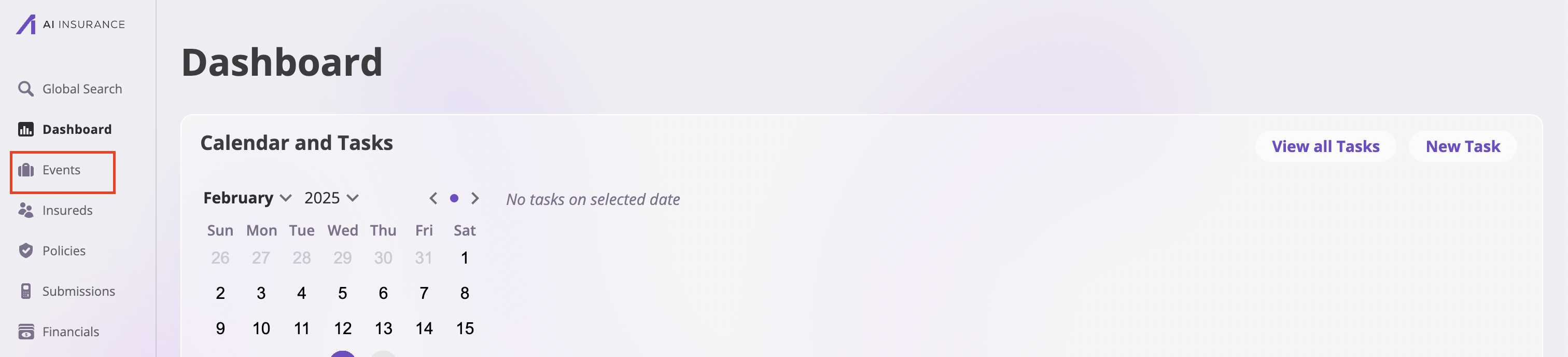 2. Click the **New Event** button at the top right corner and select the type of event you’re creating: **Incident** or **Claim**.
 3. Fill out event details.
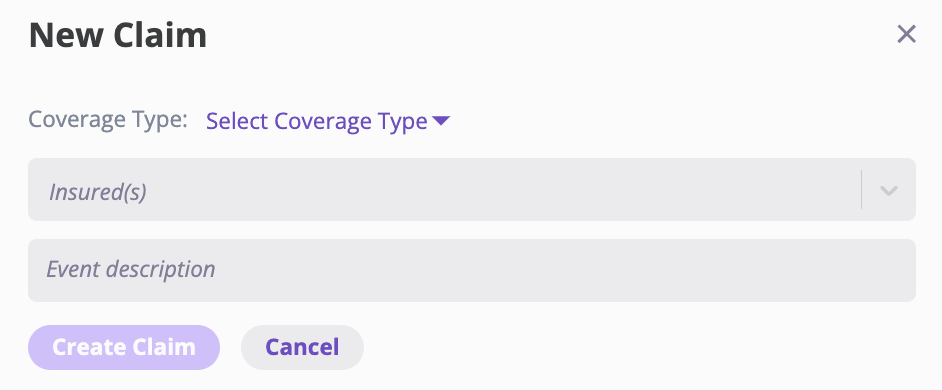
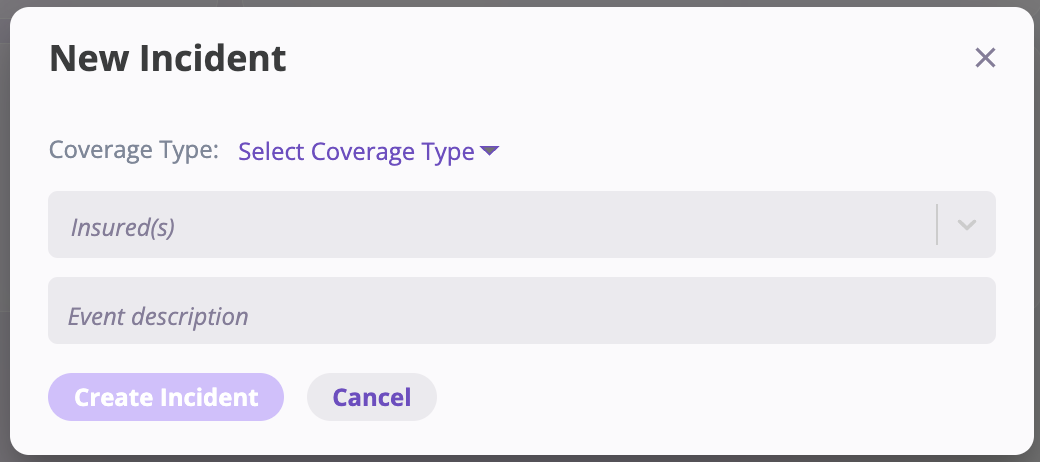 a. Choose the relevant Coverage Type. The lines of coverage shown are configured by your organization and can be customized or changed by your admin.
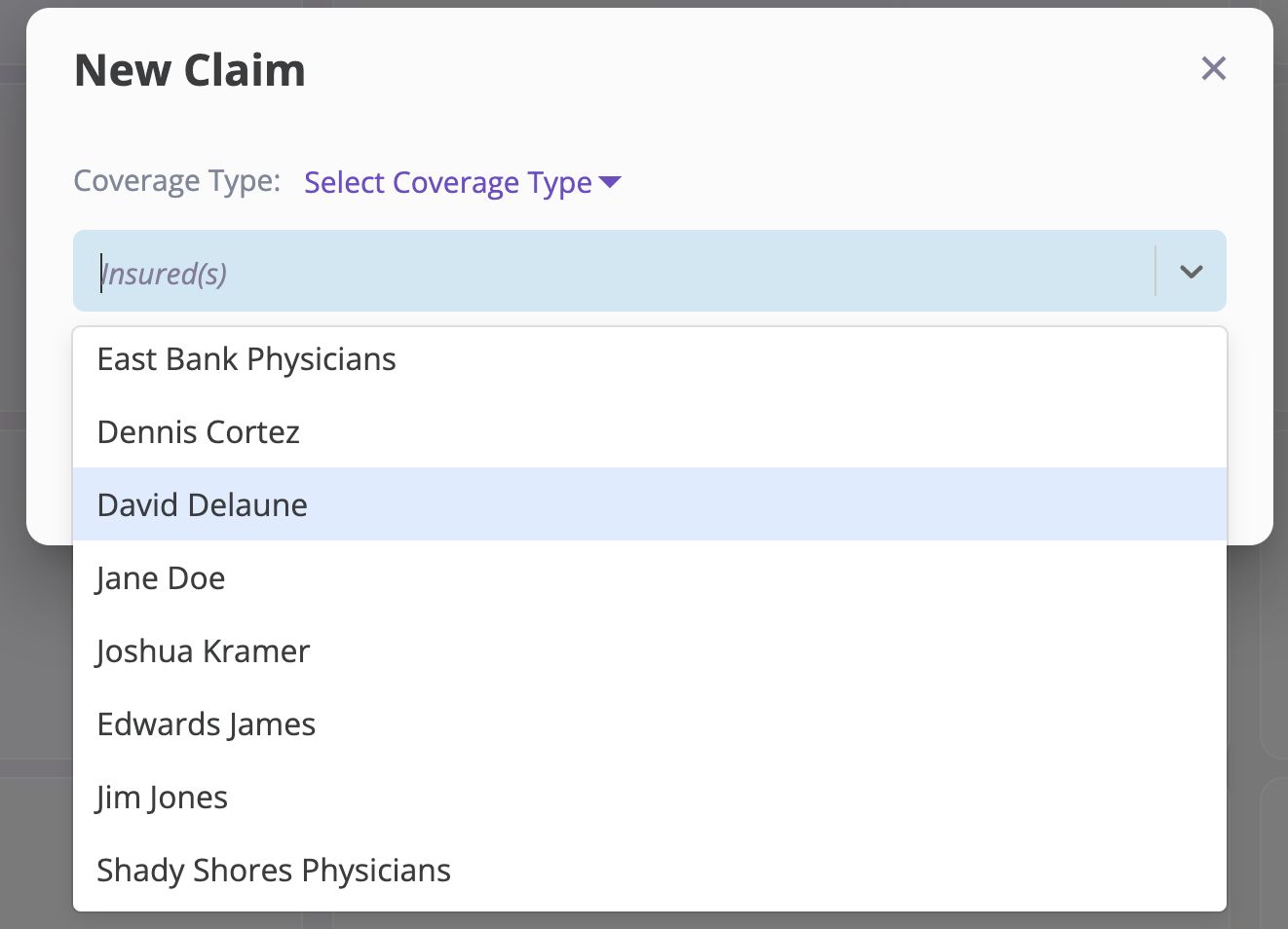
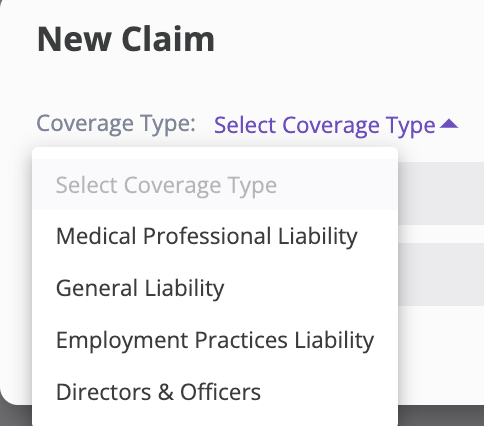 b. Associate it with the appropriate Insured(s). You can type to search for a specific insured. If you don't see the insured you're looking for, you will need to [Create an Insured](/policing/insured-management/creating-insureds).
 c. Provide any additional helpful notes in the event description field.
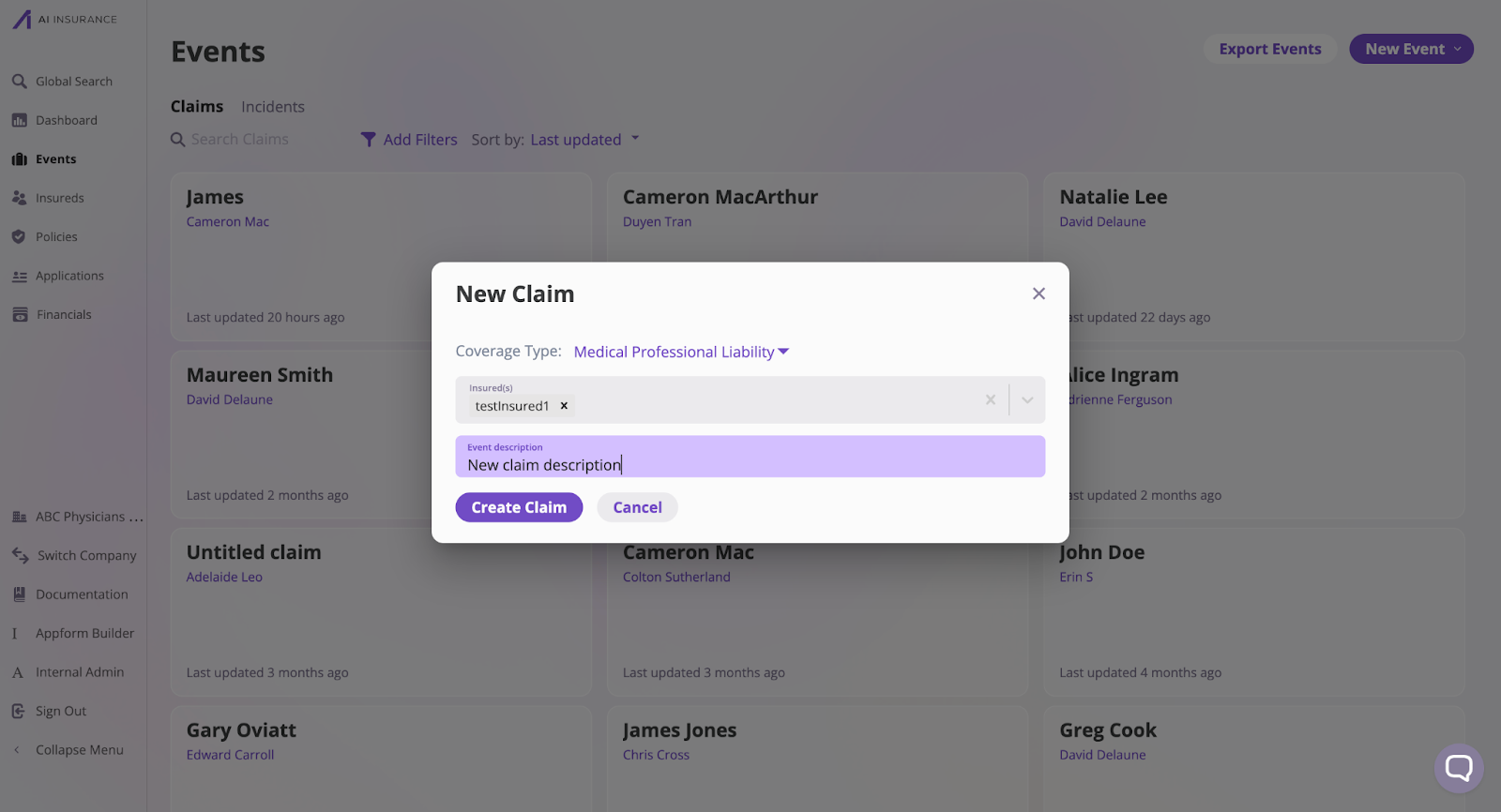 4. Click the **Create Incident** or **Create Claim** button, depending on the event you are creating.
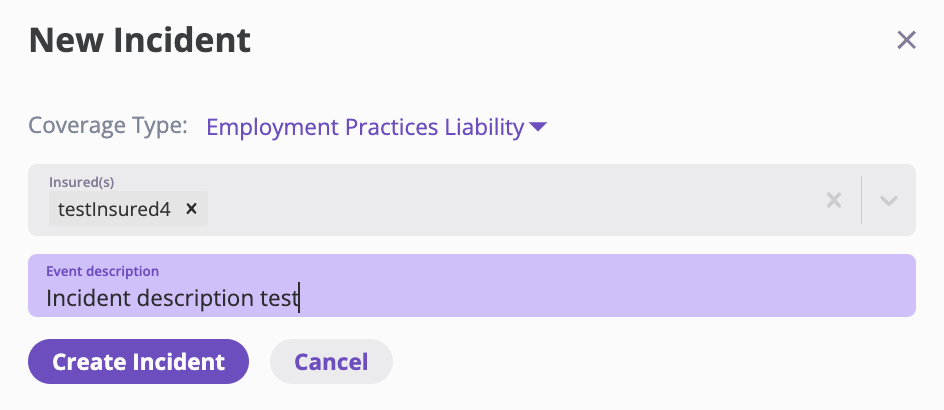 The **Create Incident** and **Create Claim** buttons will be grayed out until you enter **Coverage Type** and **Name**.