> ## Documentation Index
> Fetch the complete documentation index at: https://docs.aiinsurance.io/llms.txt
> Use this file to discover all available pages before exploring further.
# View Events
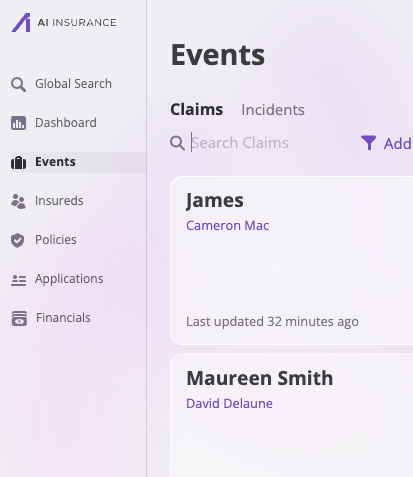
Select the **Events** tab on the sidebar to see all Events logged in your instance.
Next, select the tab for any group of Events you'd like to see, either [Claims or Incidents](/events/understanding-events).
 ## View an Event
Click on a specific event - Claims or Incidents - to learn more about it.
On the event's dedicated page, you'll find six tabs:
* Event Details
* Legal
* Files
* Notes
* Financials
* Activity
## View an Event
Click on a specific event - Claims or Incidents - to learn more about it.
On the event's dedicated page, you'll find six tabs:
* Event Details
* Legal
* Files
* Notes
* Financials
* Activity
 ### **Event Details**
Event Details display all information related to your Events.
Your team configures the fields in the **Event Details** section. Ask your Account Manager, and they can add custom fields for you. We also provide recommendations on why specific fields are present.
### **Event Details**
Event Details display all information related to your Events.
Your team configures the fields in the **Event Details** section. Ask your Account Manager, and they can add custom fields for you. We also provide recommendations on why specific fields are present.
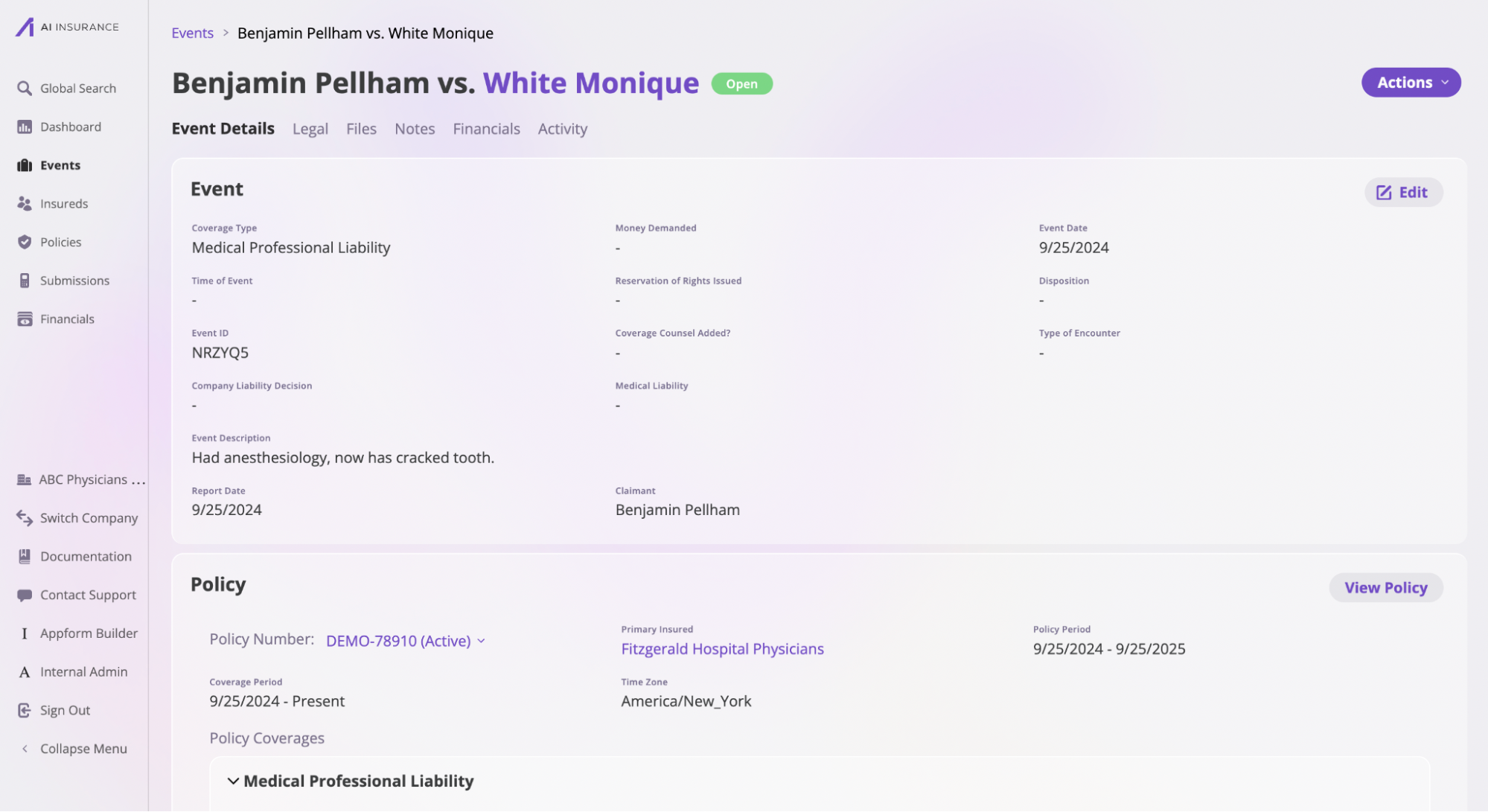 Fields in **Event Details** are automatically grouped into sections depending on the coverage line.
For example, a Medical Professional Liability coverage line will have related sections such as Medical, Allegations, and more.
Similarly, an Event will only have the **Claimant** section if the Event does have a Claimant.
Fields in **Event Details** are automatically grouped into sections depending on the coverage line.
For example, a Medical Professional Liability coverage line will have related sections such as Medical, Allegations, and more.
Similarly, an Event will only have the **Claimant** section if the Event does have a Claimant.
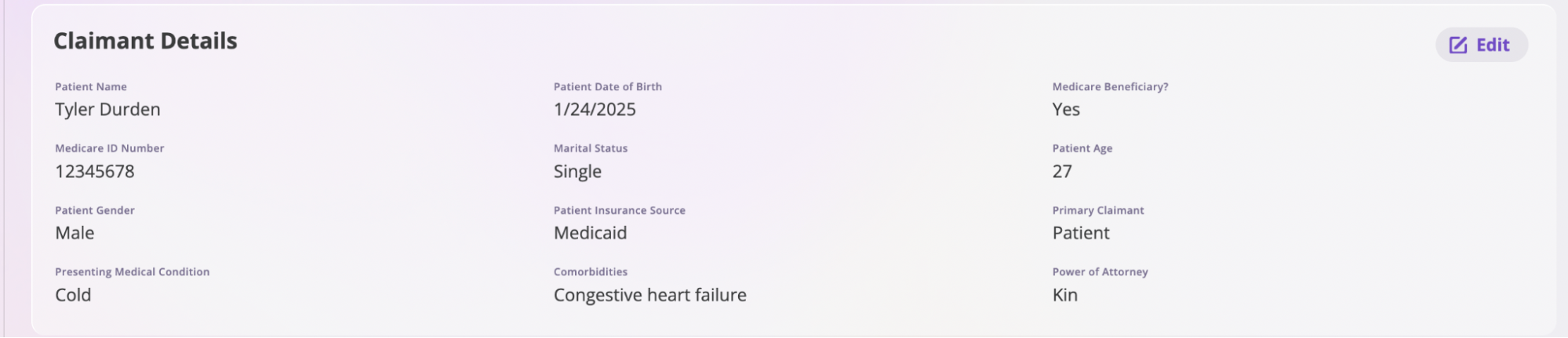 However, **Event Details** typically includes at least these three sections:
* **Event**: Provides an overview, including details such as Coverage Type, Money Demanded, Event Date, Time of Event, and more.
However, **Event Details** typically includes at least these three sections:
* **Event**: Provides an overview, including details such as Coverage Type, Money Demanded, Event Date, Time of Event, and more.
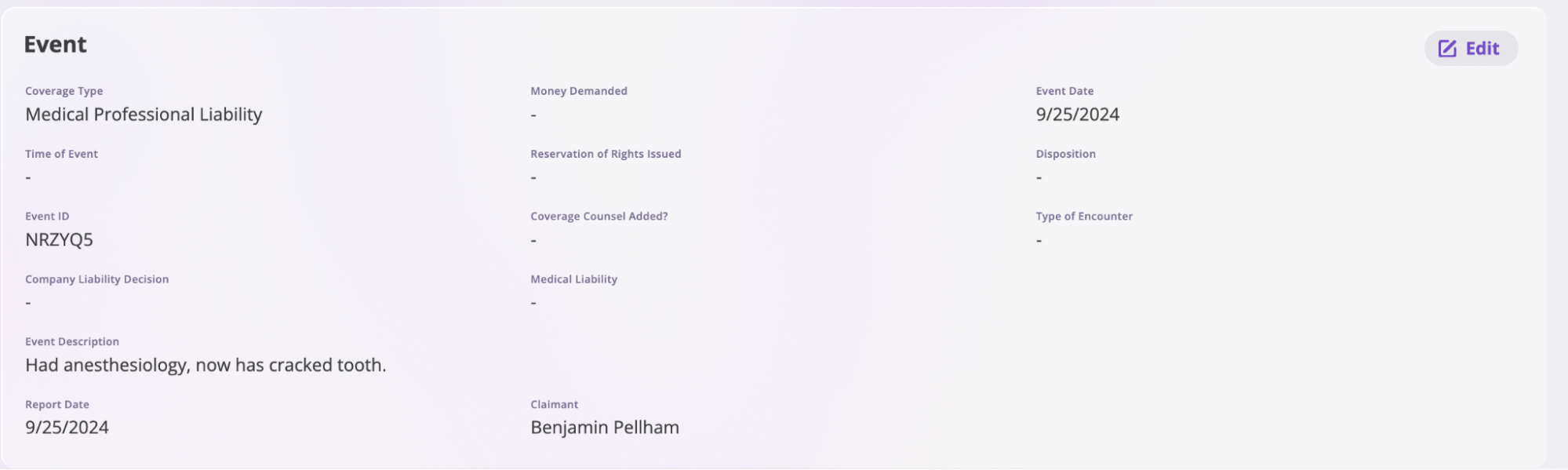 * **Policy**: Contains information about the policy the claim/incident applies to.. The platform will automatically select the most active policy to the claim and pull all relevant information.
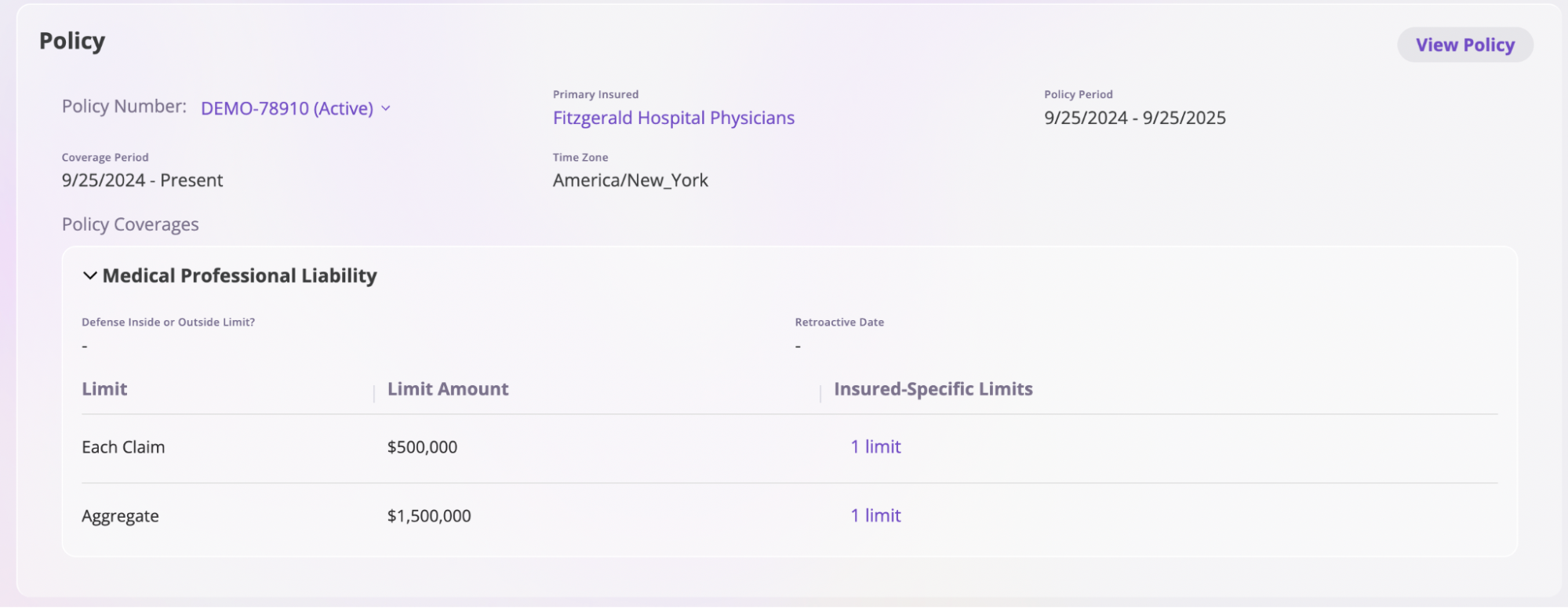 However, to change the policy, click the downward-facing arrow in the **Policy Number** section and select a policy from the dropdown.
 **Note**: If no policy is automatically applied, it likely means there isn’t one. In that case, you should [Create a Policy](/policing/policy-management/policy-issuance).
* **Location**: Displays information about where the event occurred.
**Note**: If no policy is automatically applied, it likely means there isn’t one. In that case, you should [Create a Policy](/policing/policy-management/policy-issuance).
* **Location**: Displays information about where the event occurred.
 ### **Legal**
The Legal section contains all the legal information concerned with an Event. It is split into different sections, which are:
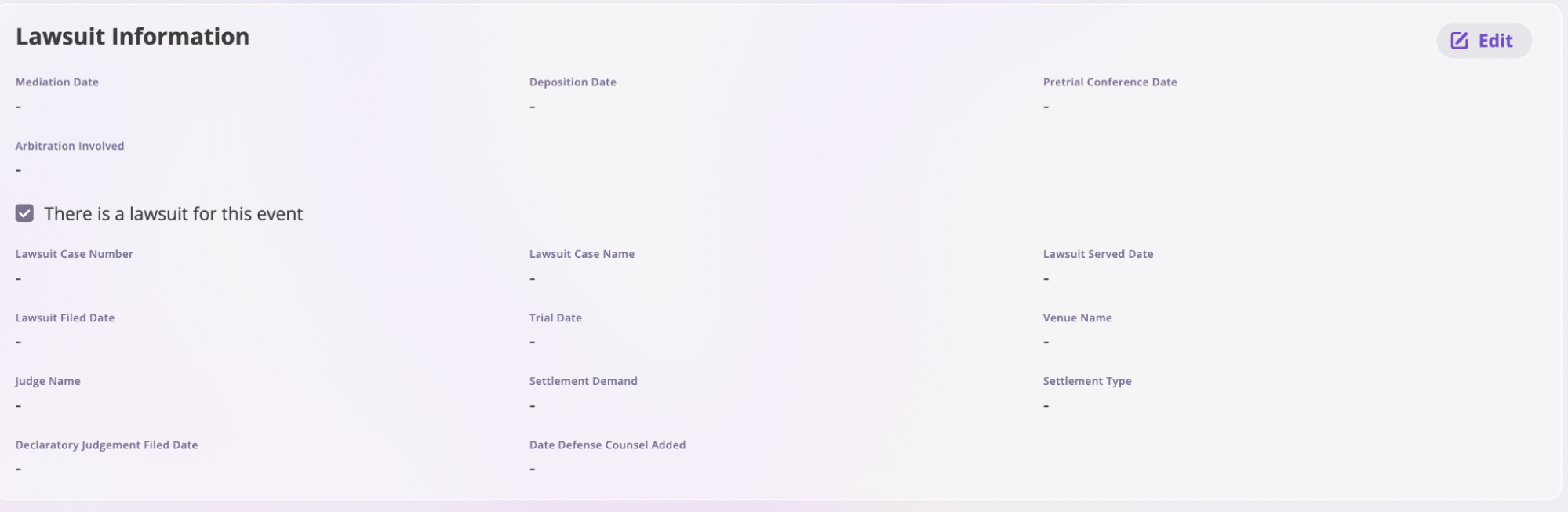
* **Lawsuit Information**: Displays all the information for any lawsuit related to an Event.
### **Legal**
The Legal section contains all the legal information concerned with an Event. It is split into different sections, which are:
* **Lawsuit Information**: Displays all the information for any lawsuit related to an Event.
 * **Plaintiff Legal Information**: Tracks all information about a plaintiff in fields like **Plaintiff Name**, **Plaintiff Address**, **Plaintiff Attorney**, and more.
 * **Defendants**: Tracks all defendants, insured and non-insured, associated with a lawsuit. Add a defendant with the following steps:
1. Click the **Add New Defendant** button in the **Defendants** section.
* **Defendants**: Tracks all defendants, insured and non-insured, associated with a lawsuit. Add a defendant with the following steps:
1. Click the **Add New Defendant** button in the **Defendants** section.
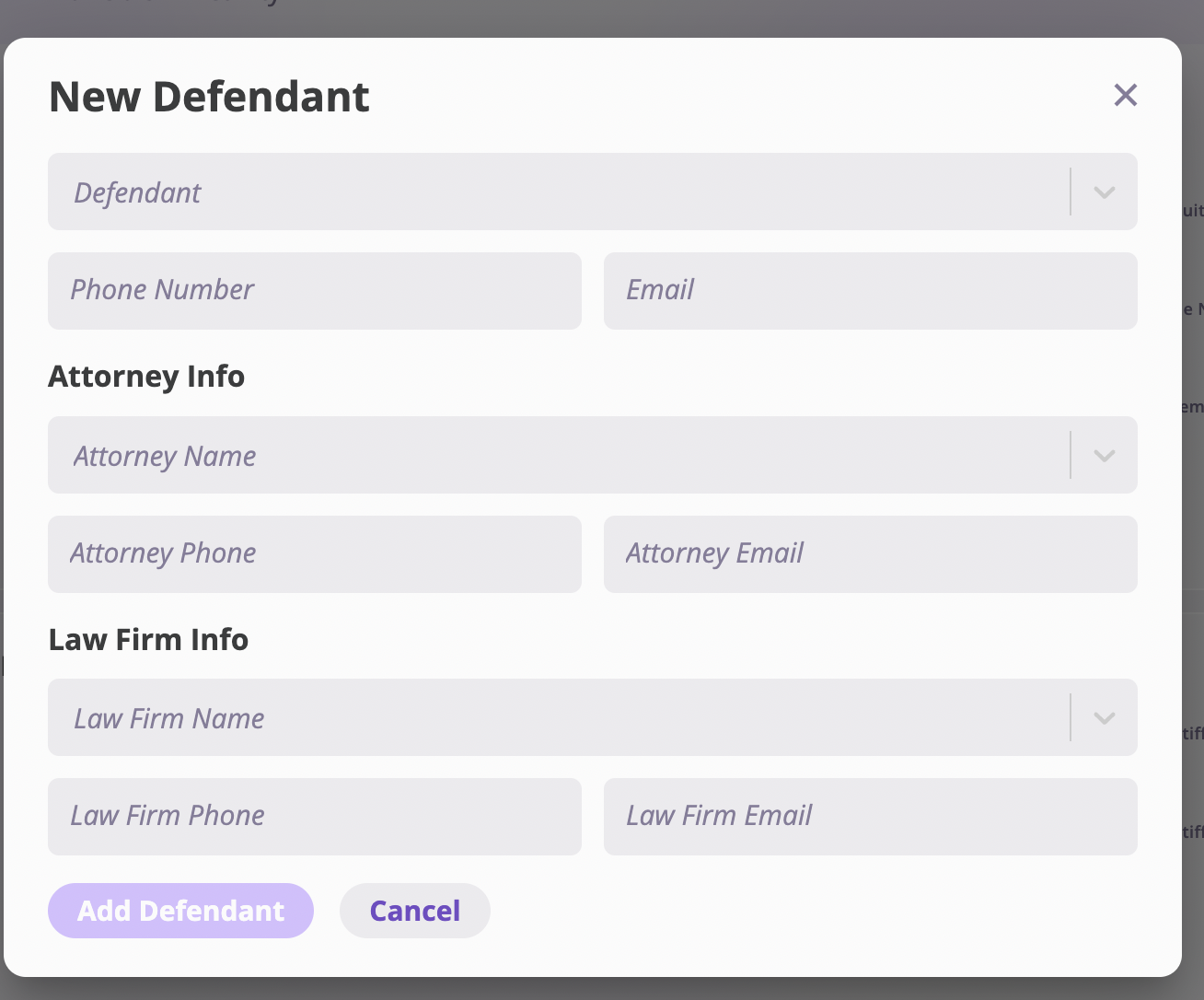 ii. Enter the defendant's information. If the defendant, their attorney, or law firm doesn’t already exist, a **Create New** modal will appear. Use it to add a new defendant, attorney, or law firm.
iii. Click the **Add Defendant** button to save the information.
### **Files**
This section holds all the files related to an Event. Refer to the [Files documentation](/platform/components/files) to learn more about uploading, editing, and deleting files on the platform.
### **Notes**
This section holds all the notes related to an Event. Refer to the [Notes documentation](/platform/components/notes) to learn more.
### **Financials**
This section holds all the financial information related to an Event. This section is divided into two:
* Summary
* Transactions
ii. Enter the defendant's information. If the defendant, their attorney, or law firm doesn’t already exist, a **Create New** modal will appear. Use it to add a new defendant, attorney, or law firm.
iii. Click the **Add Defendant** button to save the information.
### **Files**
This section holds all the files related to an Event. Refer to the [Files documentation](/platform/components/files) to learn more about uploading, editing, and deleting files on the platform.
### **Notes**
This section holds all the notes related to an Event. Refer to the [Notes documentation](/platform/components/notes) to learn more.
### **Financials**
This section holds all the financial information related to an Event. This section is divided into two:
* Summary
* Transactions
 #### Summary
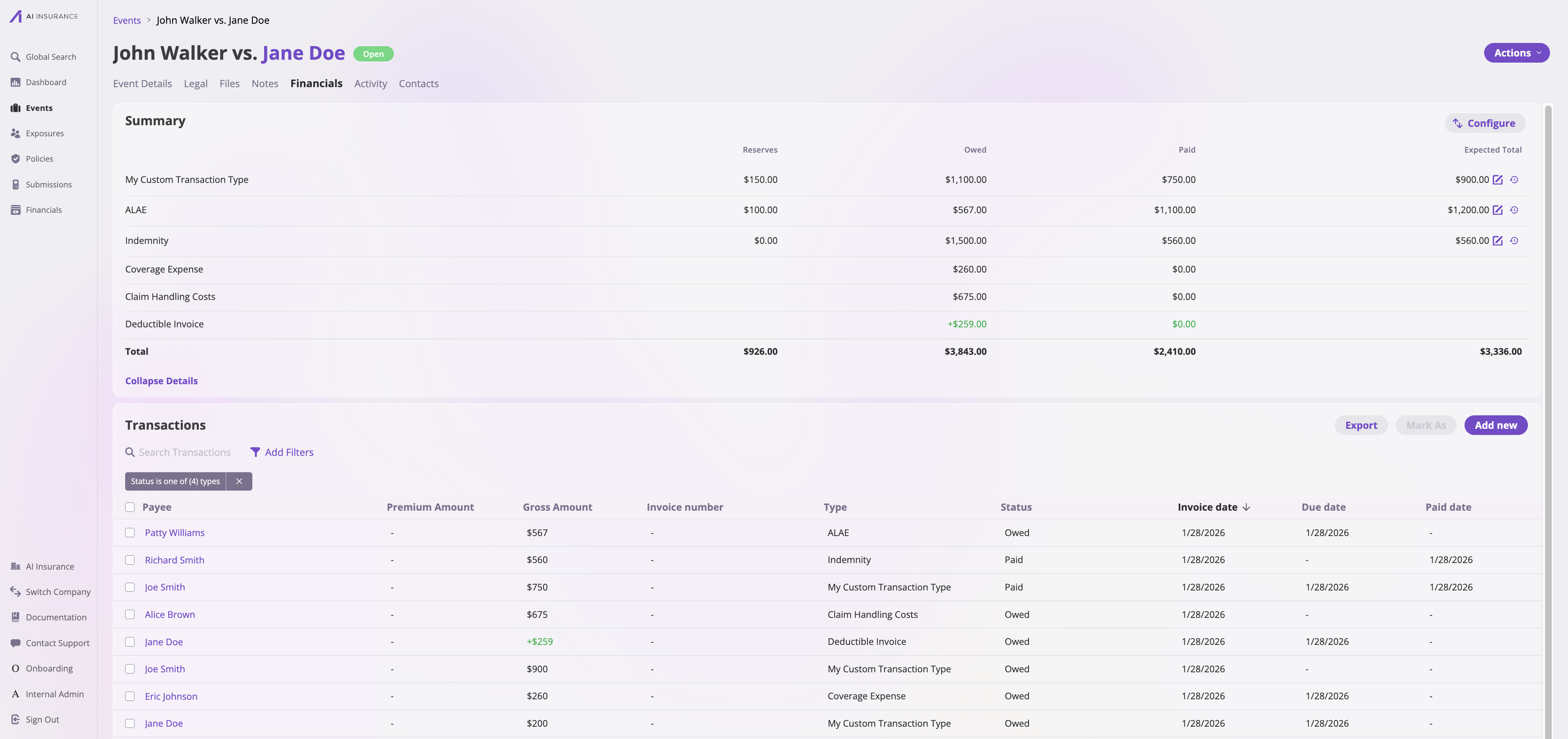
This section summarizes all the financial information related to the Event. The details are organized into various fields, including:
* **Indemnity Reserve Amount**: This is the estimated amount set aside to cover potential indemnity payments for a claim. It is calculated as Expected Total Indemnity - Total Indemnity Transactions Paid.
* **ALAE Reserve Amount**: The estimated amount reserved for Allocated Loss Adjustment Expenses (ALAE) related to claim handling. It is calculated as **Expected Total ALAE - Total ALAE Transactions Paid**.
* **Expected Total Indemnity**: This is the total gross indemnity amount allocated for a claim. Enter the expected indemnity amount in this field to update the Indemnity Reserve Amount accordingly
* **Expected Total ALAE**: The total gross ALAE amount anticipated for resolving the claim. Enter the expected ALAE amount in this field to update the **ALAE Reserve Amount** accordingly.
* **Coverage Expenses Owed**: The amount of coverage-related expenses that have yet to be paid by the insurer.
* **Coverage Expenses Paid**: The total amount of coverage-related expenses already paid by the insurer.
* **Deductible Owed**: The amount of deductible that the insured party still owes.
* **Deductible Paid**: The amount of deductible that the insured party has already paid.
* **Indemnity Owed**: This is the indemnity payment amount the insurer has not yet disbursed.
* **Indemnity Paid**: The total indemnity amount already paid to the claimant.
* **Claim Handling Costs Owed**: The claim handling expenses that are still pending payment by the insurer.
* **Claim Handling Costs Paid**: The total claim handling expenses that the insurer has already paid.
* **ALAE Owed**: The amount of Allocated Loss Adjustment Expenses (ALAE) still owed by the insurer.
##### Expected Total History
#### Summary
This section summarizes all the financial information related to the Event. The details are organized into various fields, including:
* **Indemnity Reserve Amount**: This is the estimated amount set aside to cover potential indemnity payments for a claim. It is calculated as Expected Total Indemnity - Total Indemnity Transactions Paid.
* **ALAE Reserve Amount**: The estimated amount reserved for Allocated Loss Adjustment Expenses (ALAE) related to claim handling. It is calculated as **Expected Total ALAE - Total ALAE Transactions Paid**.
* **Expected Total Indemnity**: This is the total gross indemnity amount allocated for a claim. Enter the expected indemnity amount in this field to update the Indemnity Reserve Amount accordingly
* **Expected Total ALAE**: The total gross ALAE amount anticipated for resolving the claim. Enter the expected ALAE amount in this field to update the **ALAE Reserve Amount** accordingly.
* **Coverage Expenses Owed**: The amount of coverage-related expenses that have yet to be paid by the insurer.
* **Coverage Expenses Paid**: The total amount of coverage-related expenses already paid by the insurer.
* **Deductible Owed**: The amount of deductible that the insured party still owes.
* **Deductible Paid**: The amount of deductible that the insured party has already paid.
* **Indemnity Owed**: This is the indemnity payment amount the insurer has not yet disbursed.
* **Indemnity Paid**: The total indemnity amount already paid to the claimant.
* **Claim Handling Costs Owed**: The claim handling expenses that are still pending payment by the insurer.
* **Claim Handling Costs Paid**: The total claim handling expenses that the insurer has already paid.
* **ALAE Owed**: The amount of Allocated Loss Adjustment Expenses (ALAE) still owed by the insurer.
##### Expected Total History
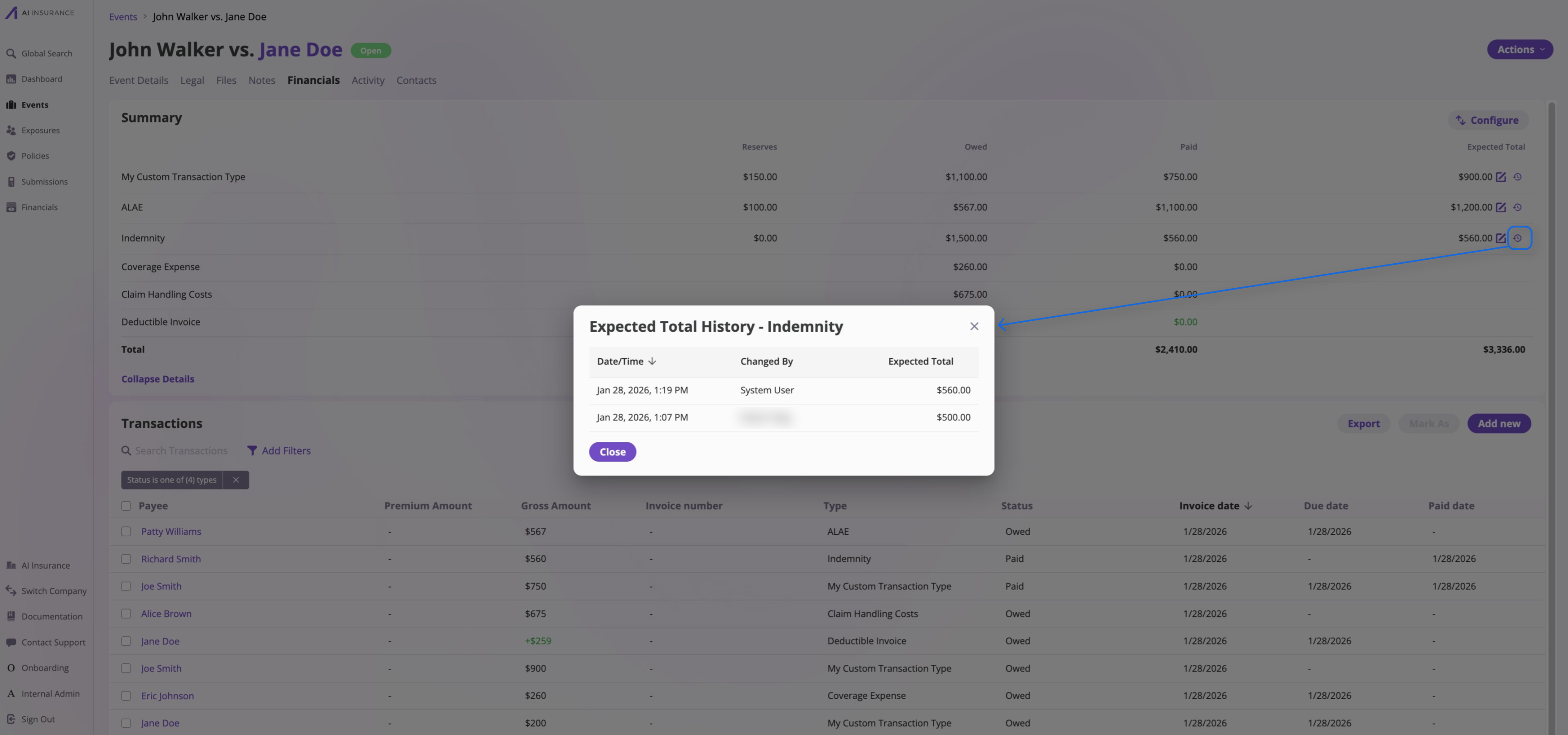 The Expected Total History modal lists all the updates made to a transaction type's expected total.
Users can set an expected total value for transaction types that have reserves.
Expected total represents the amount of money to set aside for a particular transaction type.
In addition, the system will update the expected total value to prevent reserves from going negative.
In the above example, the modal shows the Expected Total History for indemnity. There has been two updates to expected total.
1. The first one was updated by a user.
2. The second one was updated by the system.
#### Invoices and Transactions
The **Invoices and Transactions** section displays all the invoices and transactions associated with the Event.
The Expected Total History modal lists all the updates made to a transaction type's expected total.
Users can set an expected total value for transaction types that have reserves.
Expected total represents the amount of money to set aside for a particular transaction type.
In addition, the system will update the expected total value to prevent reserves from going negative.
In the above example, the modal shows the Expected Total History for indemnity. There has been two updates to expected total.
1. The first one was updated by a user.
2. The second one was updated by the system.
#### Invoices and Transactions
The **Invoices and Transactions** section displays all the invoices and transactions associated with the Event.
 You can do the following:
* **Add a Transaction**: Take these steps to add a transaction on the platform:
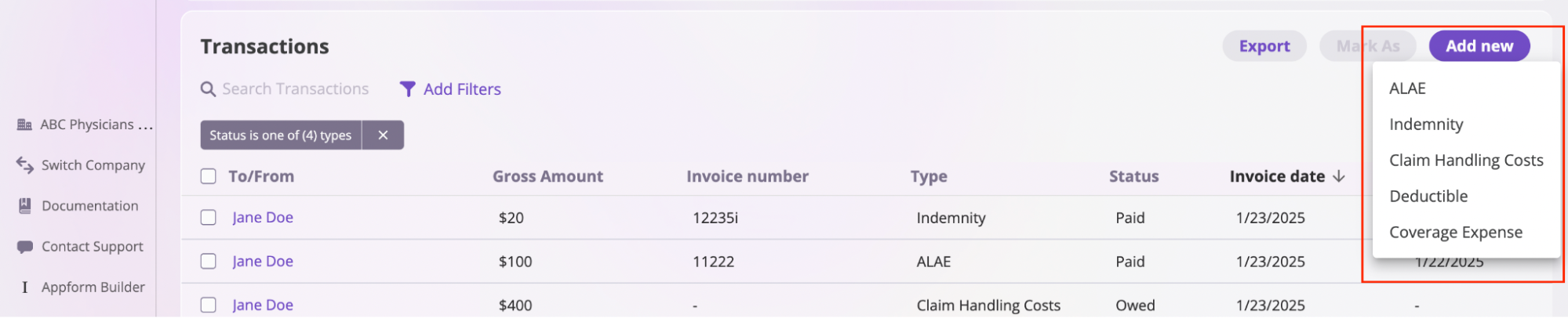
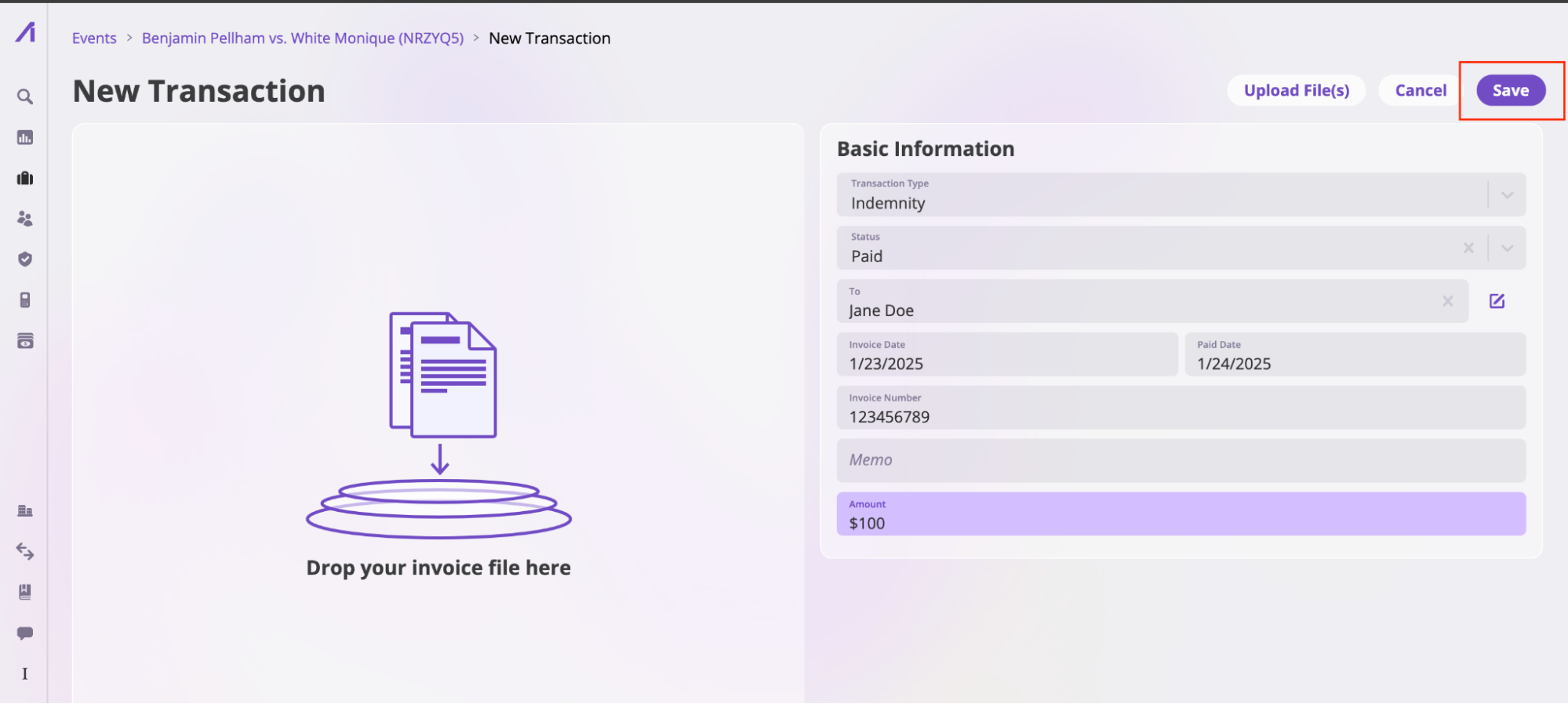
* In the **Invoices and Transactions** section, click the **Add new** button and select the type of transaction from the dropdown to open a **New Transaction** page.
You can do the following:
* **Add a Transaction**: Take these steps to add a transaction on the platform:
* In the **Invoices and Transactions** section, click the **Add new** button and select the type of transaction from the dropdown to open a **New Transaction** page.
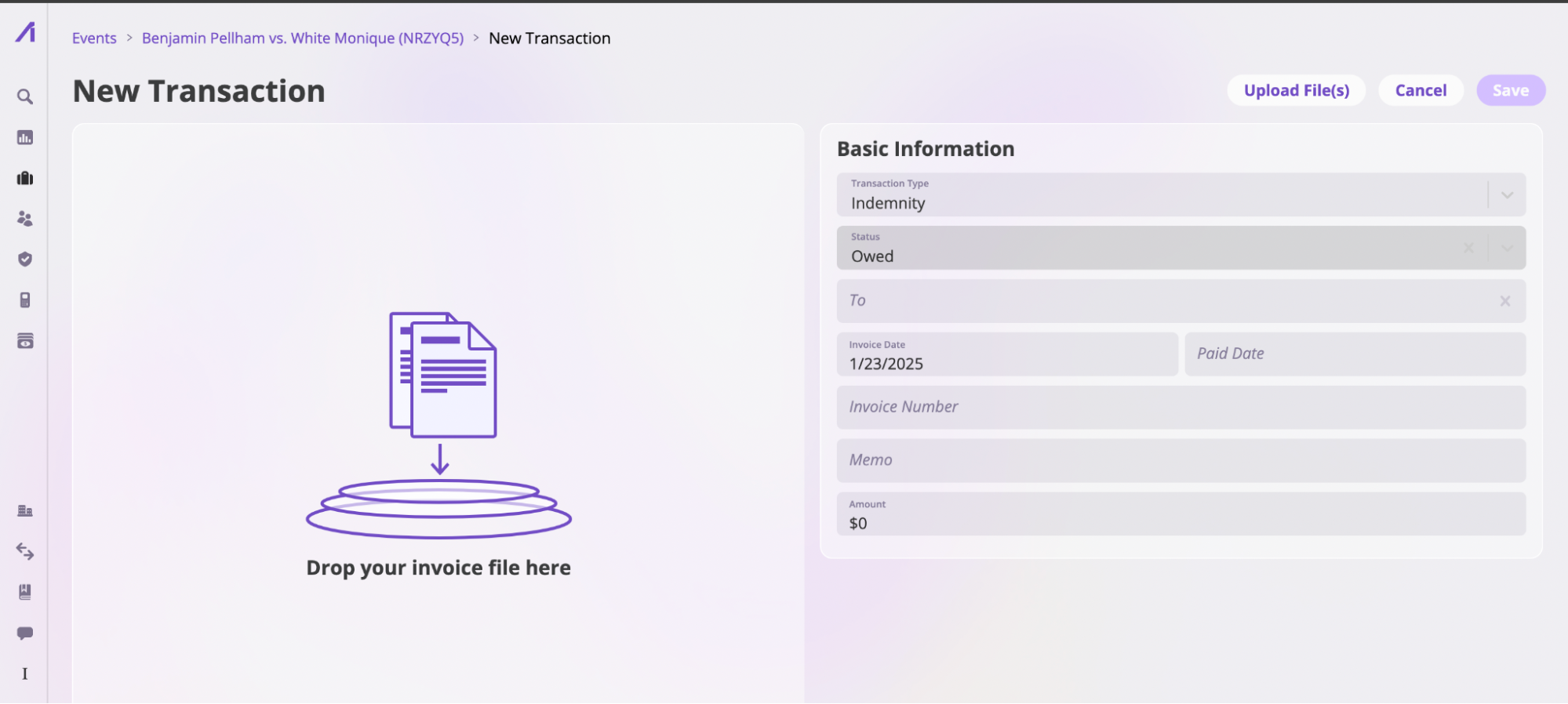 * Complete the **Basic Information** section with details about the invoice.
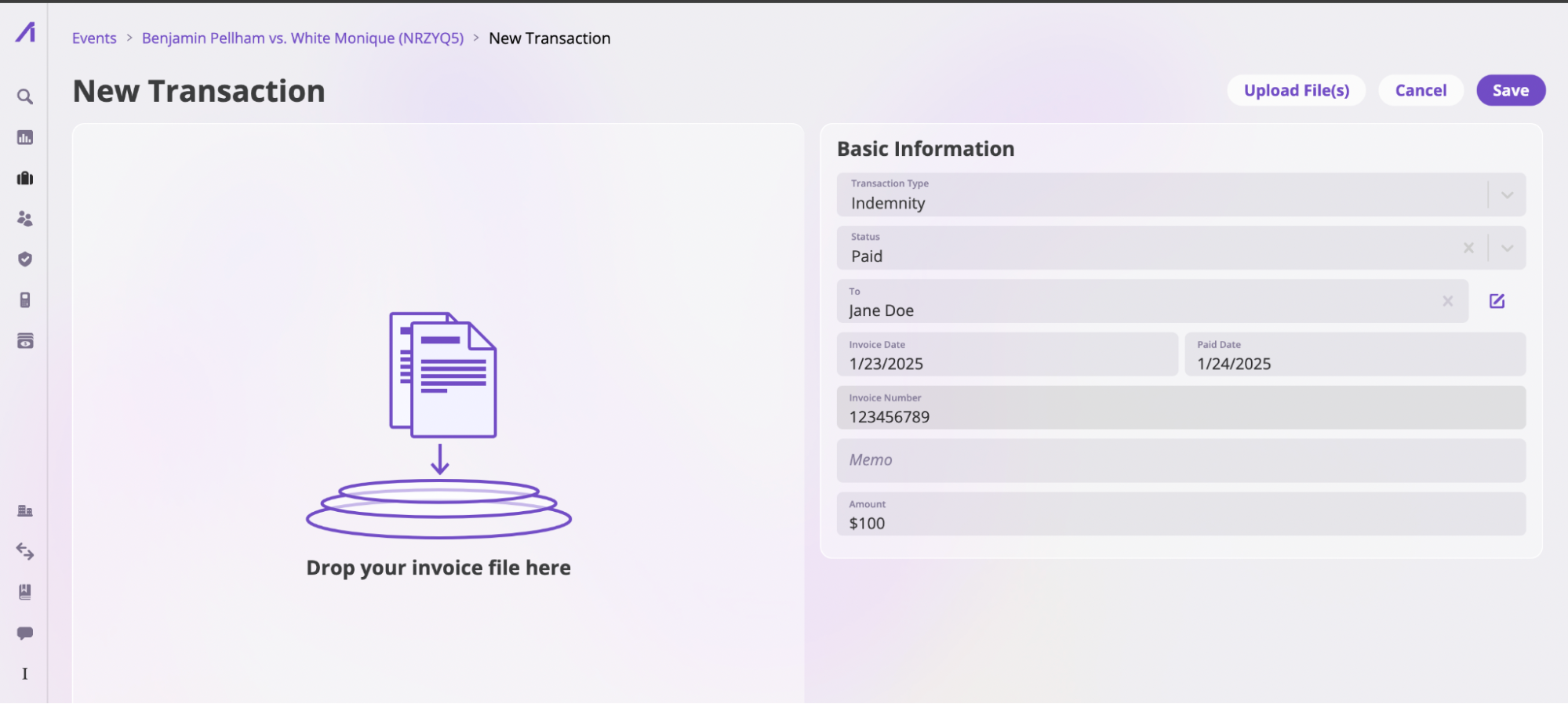 * Click **Save** to save the transaction.
 * **Mark a Transaction**: Mark a transaction as **Approved**, **Paid**, or **Owed** by selecting the transaction, clicking the **Mark As** button, and choosing the appropriate option.
 * **Export a Transaction**: Select the transactions you would like to export, and click the **Export** button at the top right of the **Invoices and Transactions** section.
 ### **Activity**
This section holds all the notes related to an Event. Refer to the [Activity Feed documentation](/platform/components/activity-feed) to learn more.
### **Activity**
This section holds all the notes related to an Event. Refer to the [Activity Feed documentation](/platform/components/activity-feed) to learn more.