> ## Documentation Index
> Fetch the complete documentation index at: https://docs.aiinsurance.io/llms.txt
> Use this file to discover all available pages before exploring further.
# Forwarded Invoices
Forwarded Invoices allows you to automatically process invoices by forwarding them via email. This is the recommended method for submitting invoices to the system, as it streamlines the invoice parsing and auditing workflow.
## Authorized Senders
The system only accepts invoices from recognized email addresses. The address you forward from must match one of the following:
* **A user** in your company (the user must have permission to update payments)
* **A payee**, matched against either the payee's **Email** field or **Alternate Emails** field
* **An attorney**, matched against the attorney's email
If the sending address doesn't match any of these, the invoice is rejected and the sender receives a bounce-back email explaining why.
If a vendor or third party will be forwarding invoices directly, add their email address to the corresponding payee's **Email** or **Alternate Emails** field before they send their first invoice.
## How to Forward Invoices
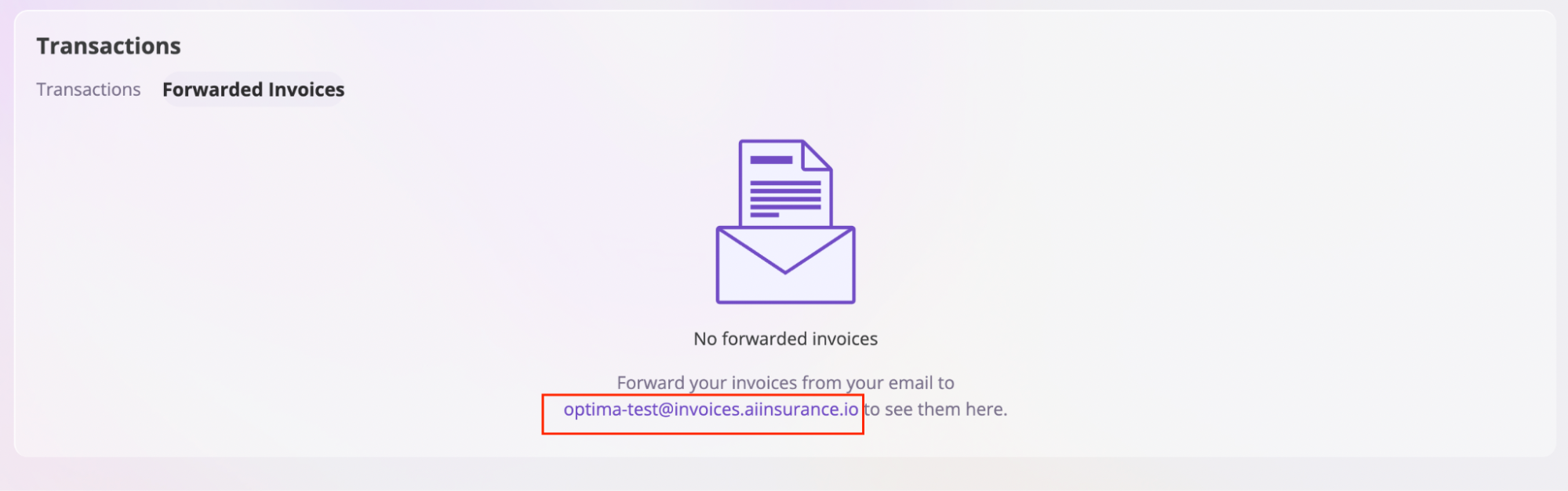
1. In the sidebar, click the **Financials** tab to open the **Financials** page.
2. Click the **Forwarded Invoices** tab.
3. Copy the email address displayed on the page.
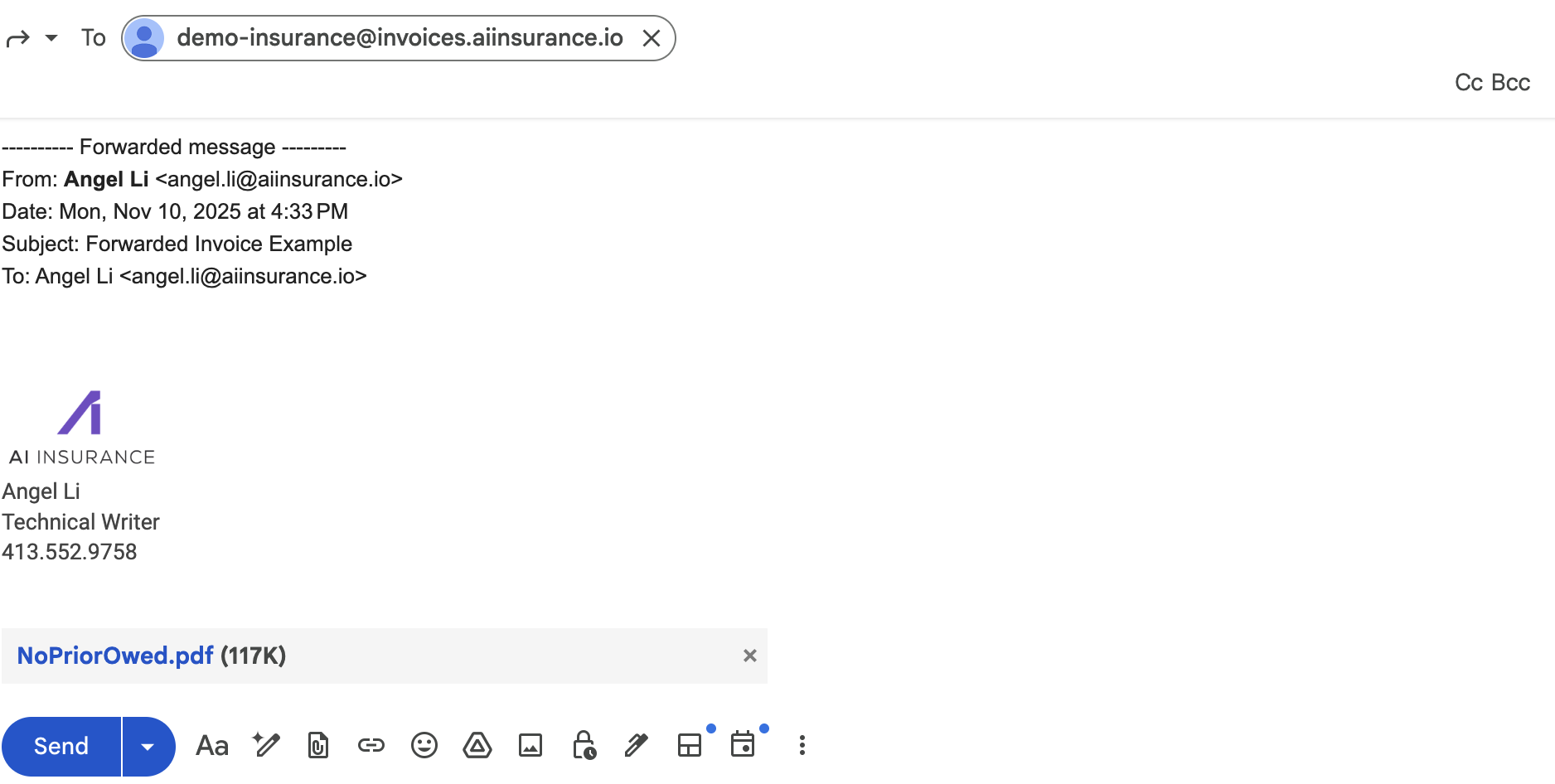
 4. Forward your invoice email to that address.
 ## What Happens Next
After forwarding an invoice:
* The system automatically parses the invoice data
* A new transaction is created for you to review
* The invoice is processed through Invoice Audit (if enabled)
* You can review and validate the parsed data
## What Happens Next
After forwarding an invoice:
* The system automatically parses the invoice data
* A new transaction is created for you to review
* The invoice is processed through Invoice Audit (if enabled)
* You can review and validate the parsed data
 ## Using Forwarded Invoices for Invoice Audit
Forwarded Invoices is the primary method for submitting invoices to the Invoice Audit system. When you forward an invoice:
1. The invoice is automatically parsed and evaluated against your audit rules
2. Violations and compliant items are flagged for your review
3. You can fine-tune your audit rules based on the results
For more information about Invoice Audit, see [Invoice Auditing](financials/invoicing/invoice-auditing#validation-and-fine-tuning).
**Note**: Forwarding invoices via email is the recommended primary workflow. You can also manually upload invoices, but email forwarding provides a more streamlined experience.
## Using Forwarded Invoices for Invoice Audit
Forwarded Invoices is the primary method for submitting invoices to the Invoice Audit system. When you forward an invoice:
1. The invoice is automatically parsed and evaluated against your audit rules
2. Violations and compliant items are flagged for your review
3. You can fine-tune your audit rules based on the results
For more information about Invoice Audit, see [Invoice Auditing](financials/invoicing/invoice-auditing#validation-and-fine-tuning).
**Note**: Forwarding invoices via email is the recommended primary workflow. You can also manually upload invoices, but email forwarding provides a more streamlined experience.