> ## Documentation Index
> Fetch the complete documentation index at: https://docs.aiinsurance.io/llms.txt
> Use this file to discover all available pages before exploring further.
# Generate artifacts on a single Insured
The carrier can generate and export a range of artifacts for the Insured, such as:
* **Certificate of Insurance (COI):** A document that serves as proof of insurance coverage. It provides essential details about the insured’s policy, such as the type of coverage, policy limits, effective dates, and the insurer’s information.
* **Insured Forms:** These are forms specific to the insured, which could include policy-related documents, applications, endorsements, or declarations. They provide detailed information about the insured and their policies.
* **Loss Runs:** A report summarizing the insured’s claims history. It typically includes details of past claims, such as dates, types of incidents, amounts paid, and statuses (open or closed).
## Generate a COI
Take the following steps to generate a COI for a specific insured:
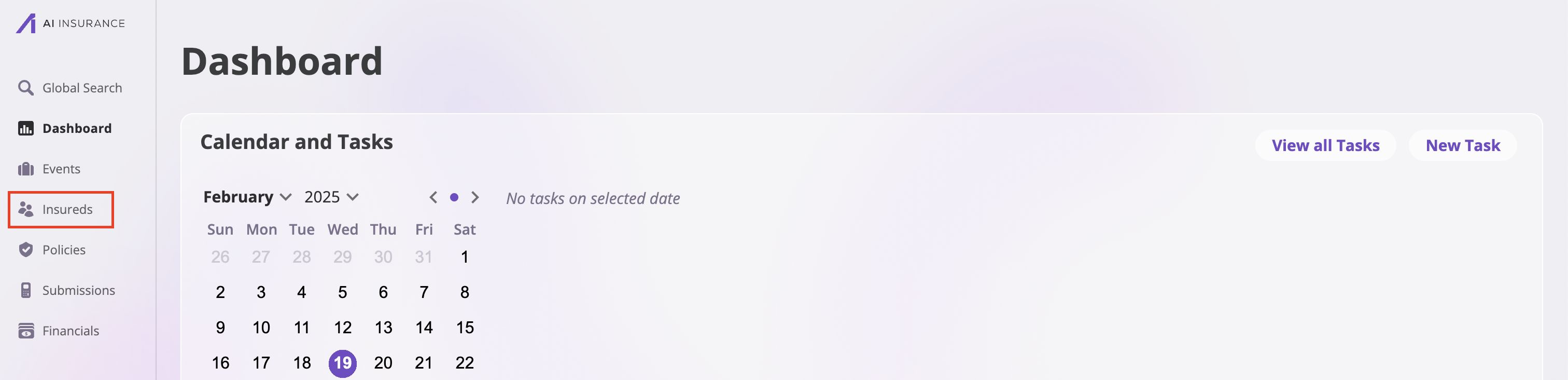
1. Navigate to the **Insureds** page by clicking the **Insureds** tab.
 2. Select the **Insureds** you want to create a COI for
3. Go to the **Actions** dropdown and select the **Generate COI** option. This action opens up a **Generate COI** modal.
2. Select the **Insureds** you want to create a COI for
3. Go to the **Actions** dropdown and select the **Generate COI** option. This action opens up a **Generate COI** modal.

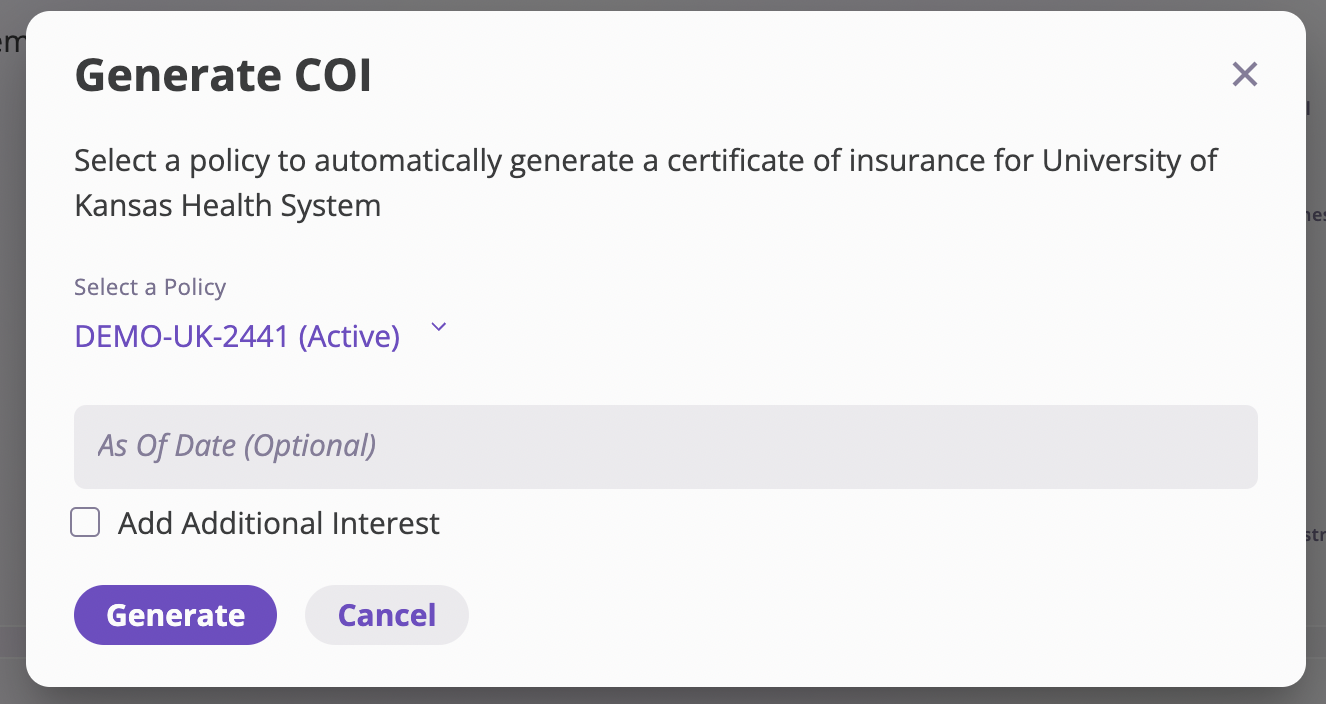 4. Fill out the following fields:
* **Select a Policy**: Choose an active policy associated with the insured to generate the COI
* **As of Date (optional)**: Optionally, link the COI to a specific date
* **Add Additional Interest**: If other parties need access to the COI, check this box and enter their names
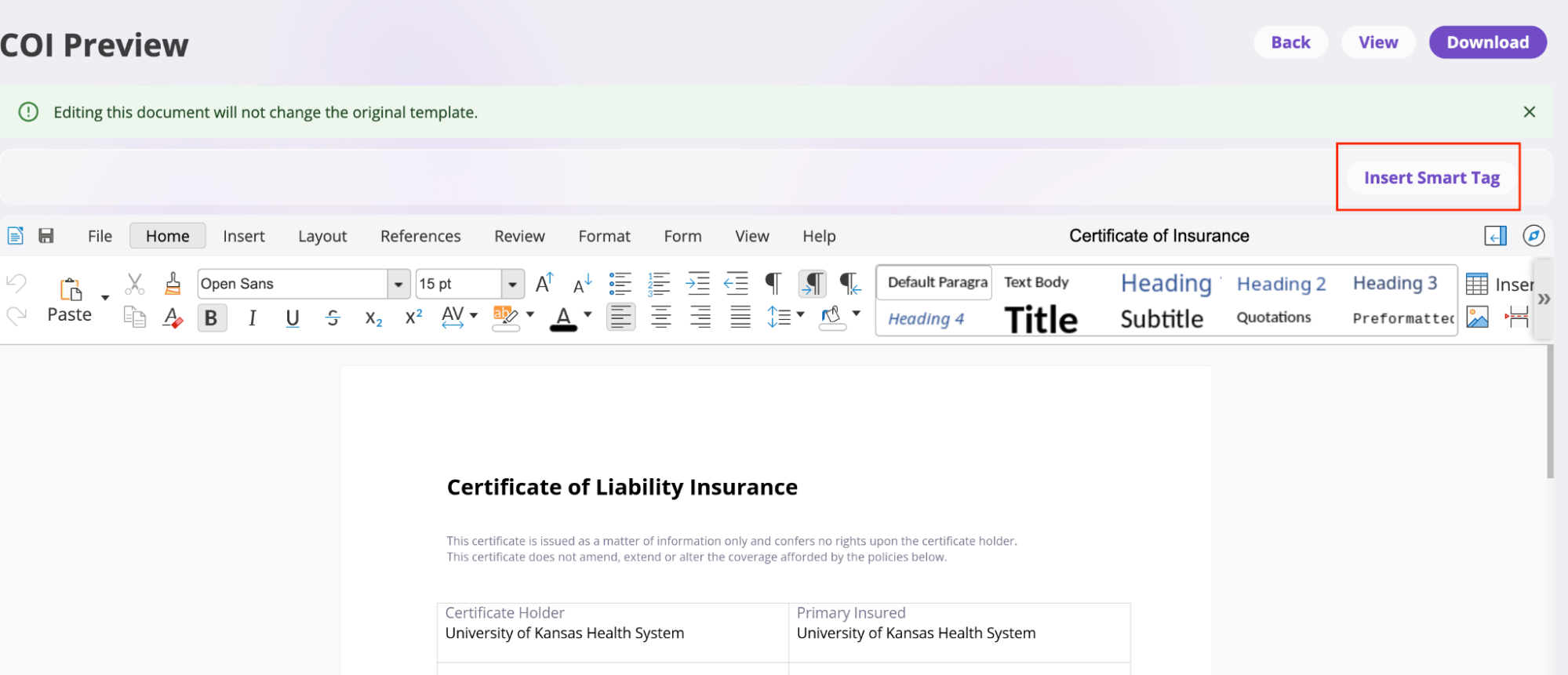
5. Click the **Generate** button to redirect you to the COI preview page.
6. On this page, you can now **Edit** or **Download** the COI.
* **Edit the COI:** Click the **Edit** button to make changes.
4. Fill out the following fields:
* **Select a Policy**: Choose an active policy associated with the insured to generate the COI
* **As of Date (optional)**: Optionally, link the COI to a specific date
* **Add Additional Interest**: If other parties need access to the COI, check this box and enter their names
5. Click the **Generate** button to redirect you to the COI preview page.
6. On this page, you can now **Edit** or **Download** the COI.
* **Edit the COI:** Click the **Edit** button to make changes.
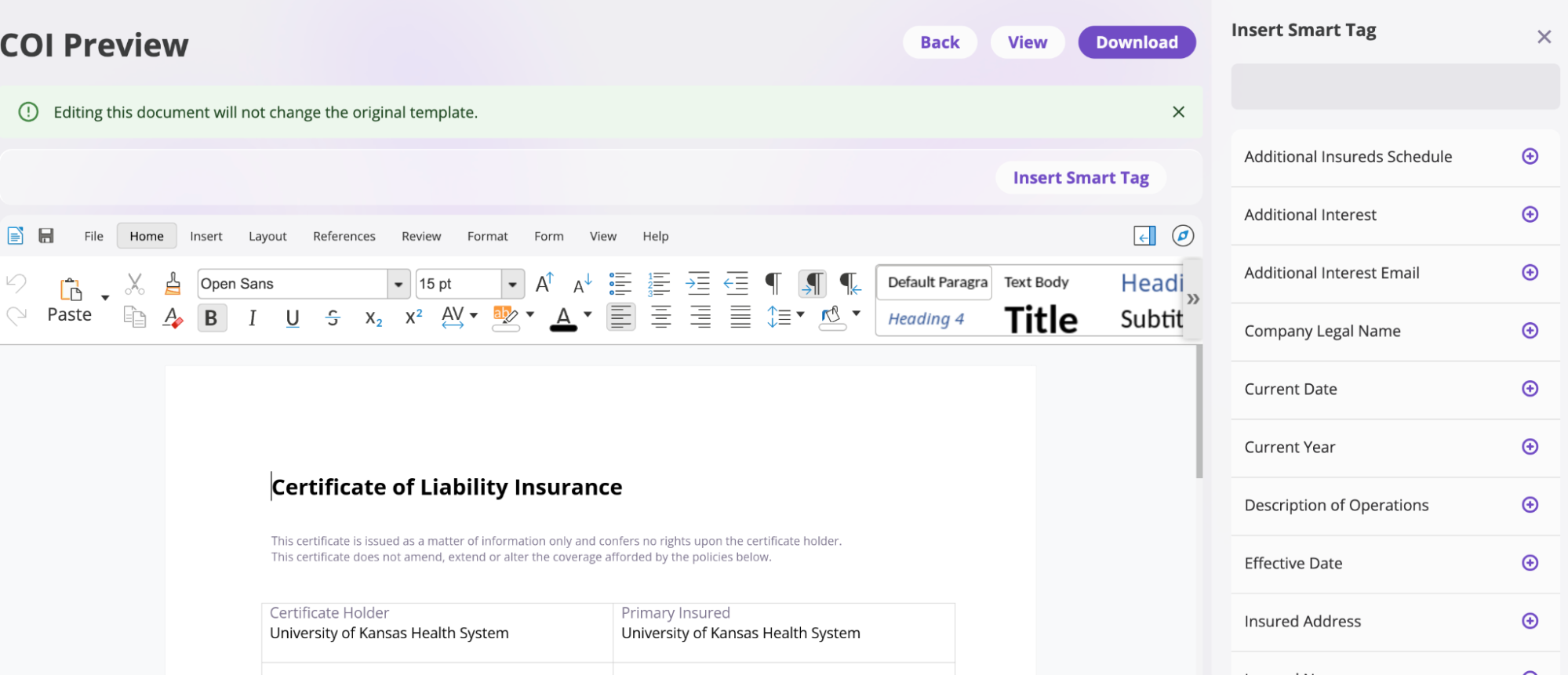
 You can also add smart tags by dragging your cursor to the desired location, clicking the **Insert Smart Tag** button, and selecting the tag to insert.
 * **Download the COI:** Click the **Download** button to save the COI to your device based on your browser's download settings.
 ## Generate Insured forms
To generate an Insured forms, take the following steps:
1. Navigate to the **Insureds** page by clicking the **Insureds** tab.
2. Select the I**nsured** you want to create a form for
3. Open the **Actions** dropdown and choose **Generate Insured Form**. This will open the **Generate Insured Form** modal.
## Generate Insured forms
To generate an Insured forms, take the following steps:
1. Navigate to the **Insureds** page by clicking the **Insureds** tab.
2. Select the I**nsured** you want to create a form for
3. Open the **Actions** dropdown and choose **Generate Insured Form**. This will open the **Generate Insured Form** modal.
 4. In the modal, complete the following fields:
* **Select a Form:** Choose the form you want to generate for the insured.
* **As of Date (optional):** Optionally, specify a date associated with the form.
* **Add Additional Interest:** If other parties need access to this form, check this box and enter their names.
4. In the modal, complete the following fields:
* **Select a Form:** Choose the form you want to generate for the insured.
* **As of Date (optional):** Optionally, specify a date associated with the form.
* **Add Additional Interest:** If other parties need access to this form, check this box and enter their names.
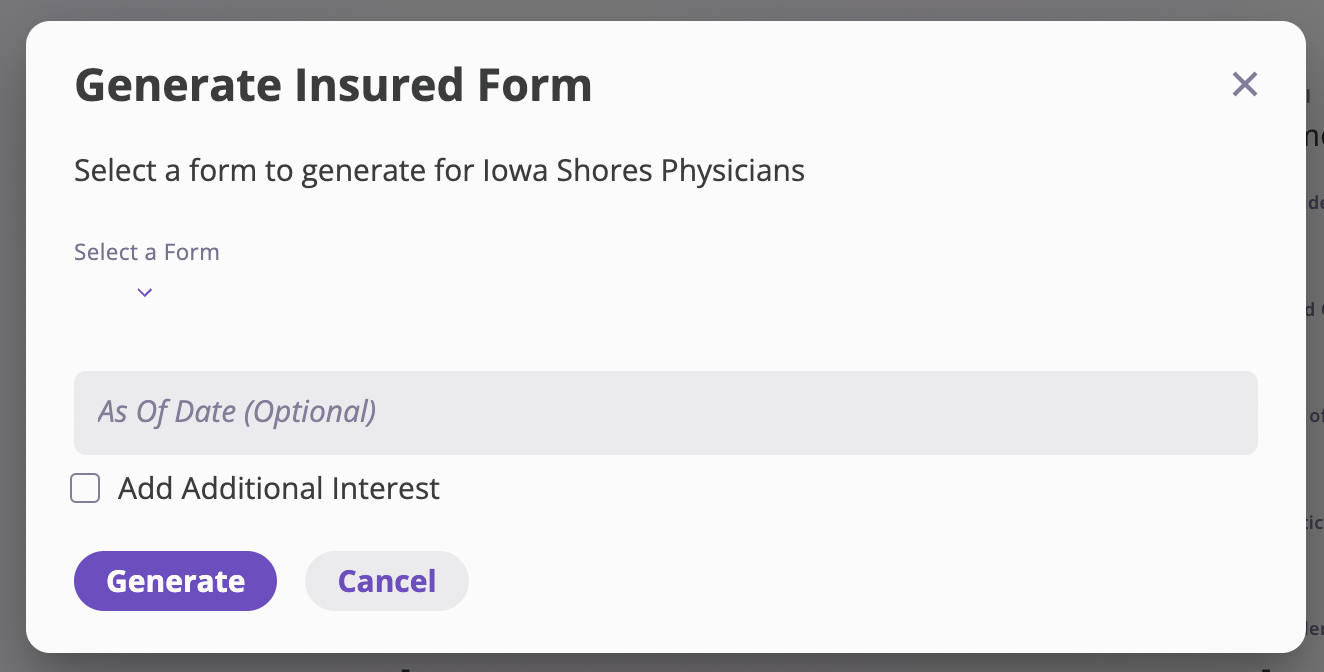 5. Next, click the **Generate** button to create the form.
## Export loss forms
To export loss forms, take the following steps:
1. Navigate to the **Insureds** page by clicking the **Insureds** tab.
2. Select the insured for whom you want to create a COI.
3. Open the **Actions** dropdown and choose the **Export Loss Run** option. This will open the **Export Loss Run for This Insured** form modal.
5. Next, click the **Generate** button to create the form.
## Export loss forms
To export loss forms, take the following steps:
1. Navigate to the **Insureds** page by clicking the **Insureds** tab.
2. Select the insured for whom you want to create a COI.
3. Open the **Actions** dropdown and choose the **Export Loss Run** option. This will open the **Export Loss Run for This Insured** form modal.
 4. (Optional) Select the date range for the loss runs you want to export.
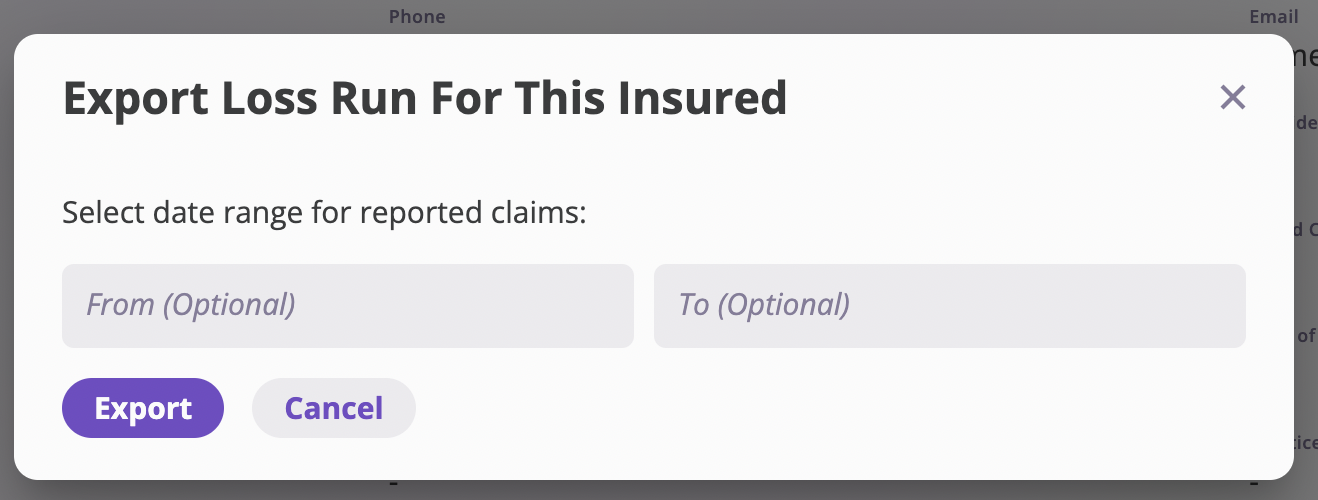 5. Click the **Export** button to download the loss run artifact. The file will be saved to your computer based on your browser's download settings.