> ## Documentation Index
> Fetch the complete documentation index at: https://docs.aiinsurance.io/llms.txt
> Use this file to discover all available pages before exploring further.
# Notes
You can take notes throughout AI Insurance. These notes are text records linked to specific entities and are available as sub-tabs under Policies, Insureds, and Events. Notes support plain text without formatting, and there is no limit to their length.
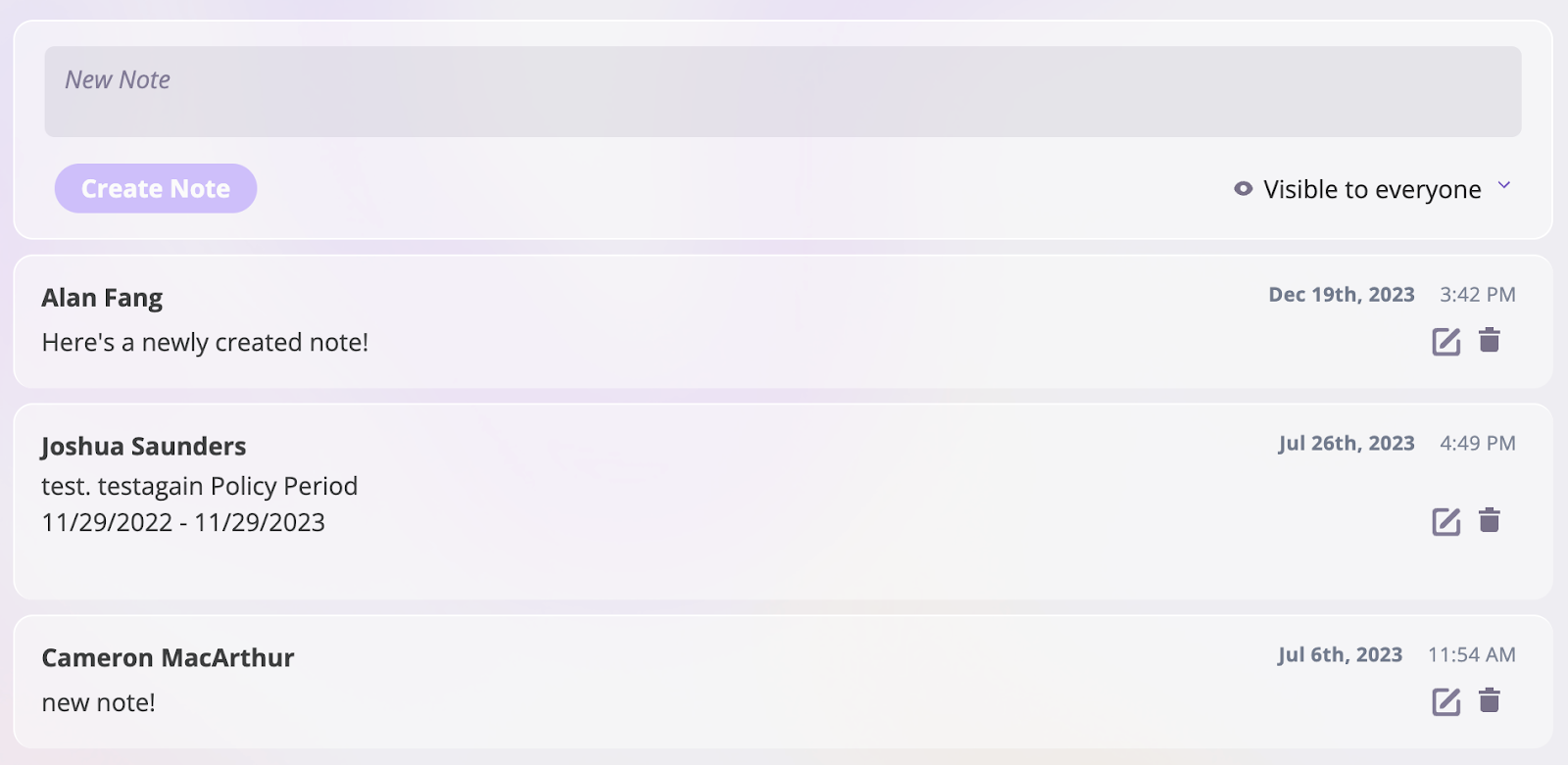
When you create a note, it is automatically tagged with the date, time, and author. If needed, you can edit the content of your note at any time.
## View Notes
Notes are available for entities such as Events, Insureds, and Policies. To view notes taken on each of these entities, do the following.
### **View Event Notes**
Follow these steps to view notes taken for an event:
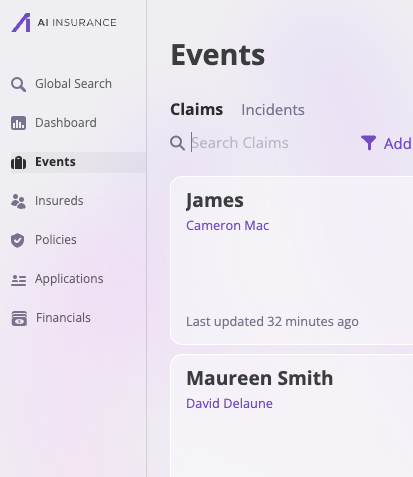
1. Select the **Events** section on the screen's left sidebar.
 2. On the **Events** page, select the event, whether a claim or an incident, for which you want to view notes.
3. Select any specific events you would like to see its notes.
2. On the **Events** page, select the event, whether a claim or an incident, for which you want to view notes.
3. Select any specific events you would like to see its notes.
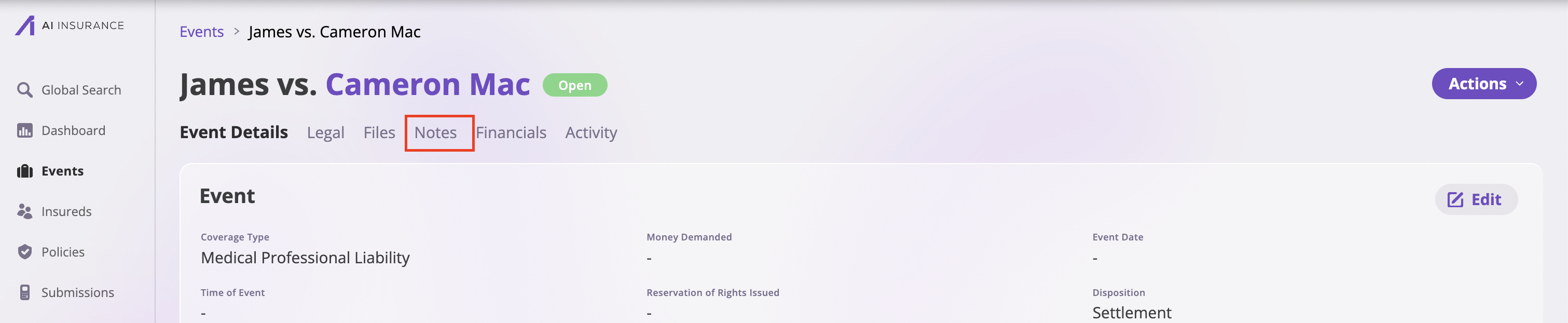
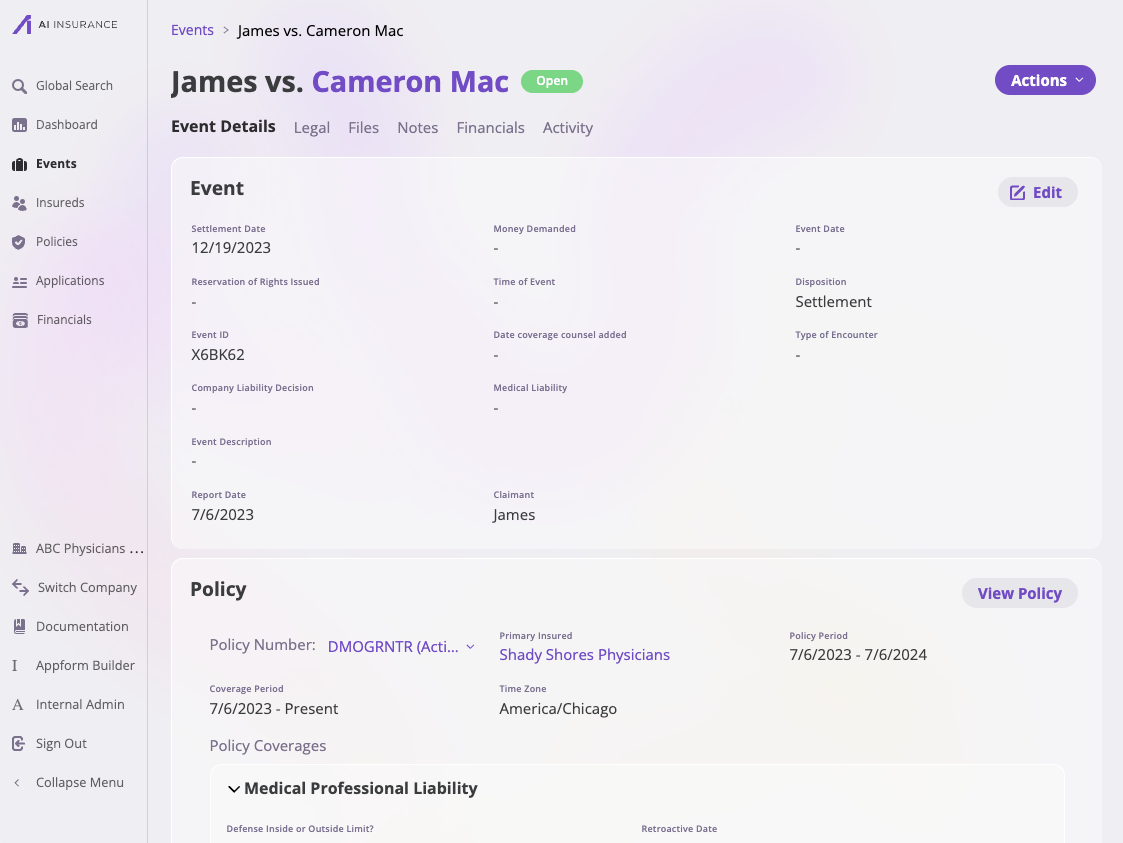 4. Select the **Notes** tab to see the notes on that event.
 ### **View Insured Notes**
Follow these steps to view notes taken on an Insured:
1. Select the **Insureds** section on the screen's left sidebar.
### **View Insured Notes**
Follow these steps to view notes taken on an Insured:
1. Select the **Insureds** section on the screen's left sidebar.
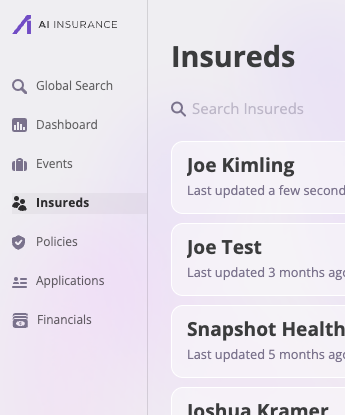 2. Select any one of your specific insureds.
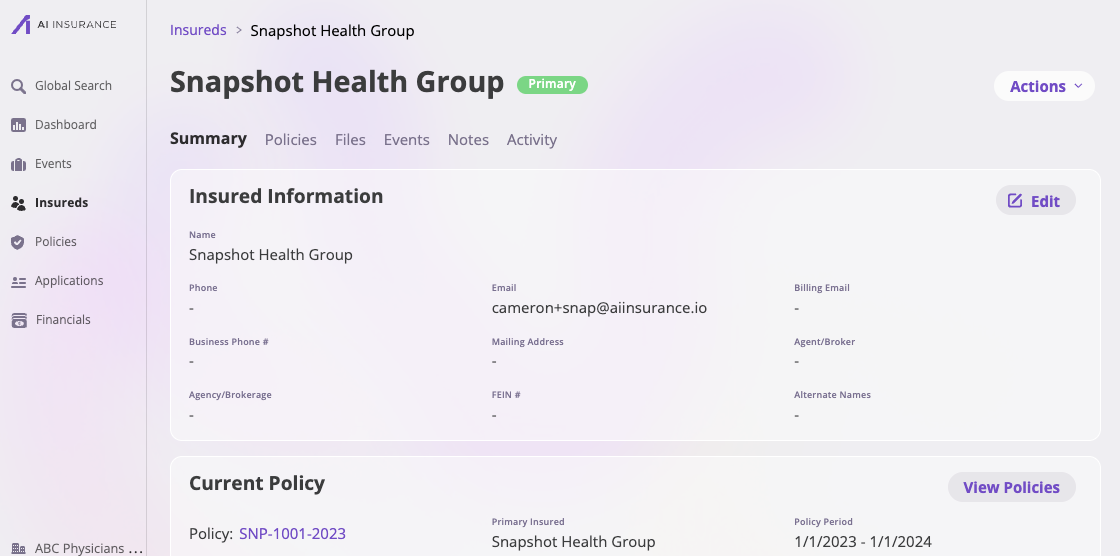 3. Click the **Notes** tab to see the notes taken on that Insured.
 ### **View the Policies’ Notes**
To view notes taken on a policy, take the following steps:
1. Select the **Policies** section on the screen's left sidebar.
### **View the Policies’ Notes**
To view notes taken on a policy, take the following steps:
1. Select the **Policies** section on the screen's left sidebar.
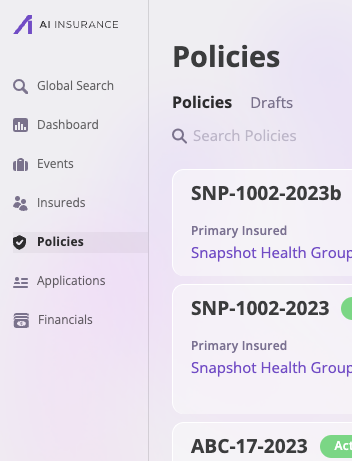 2. Select the policy you would like to see notes on.
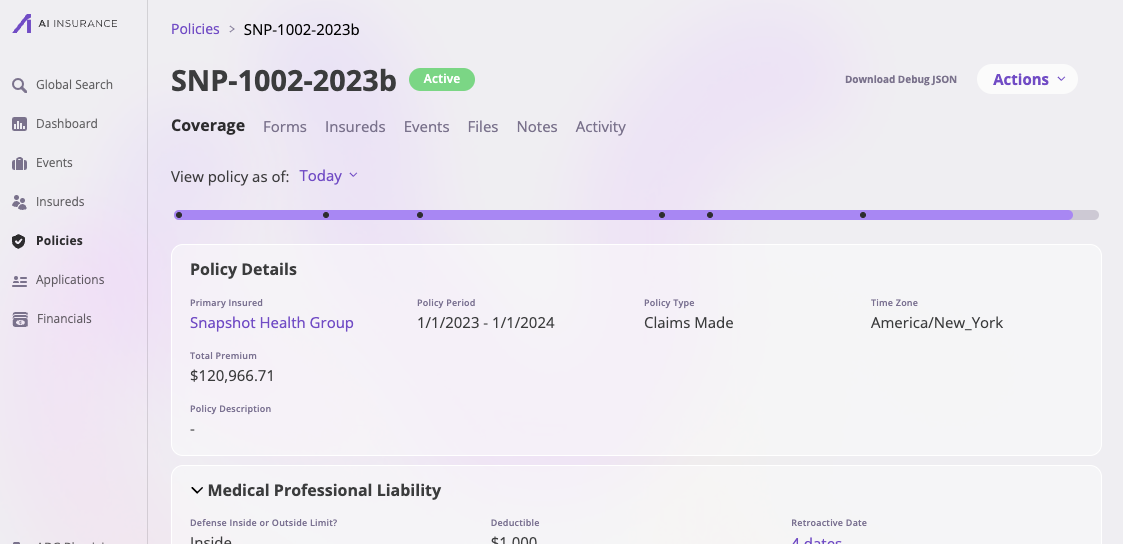 3. Click the **Notes** tab to see the notes.
 ## Create a Note
Take the following steps to create a note:
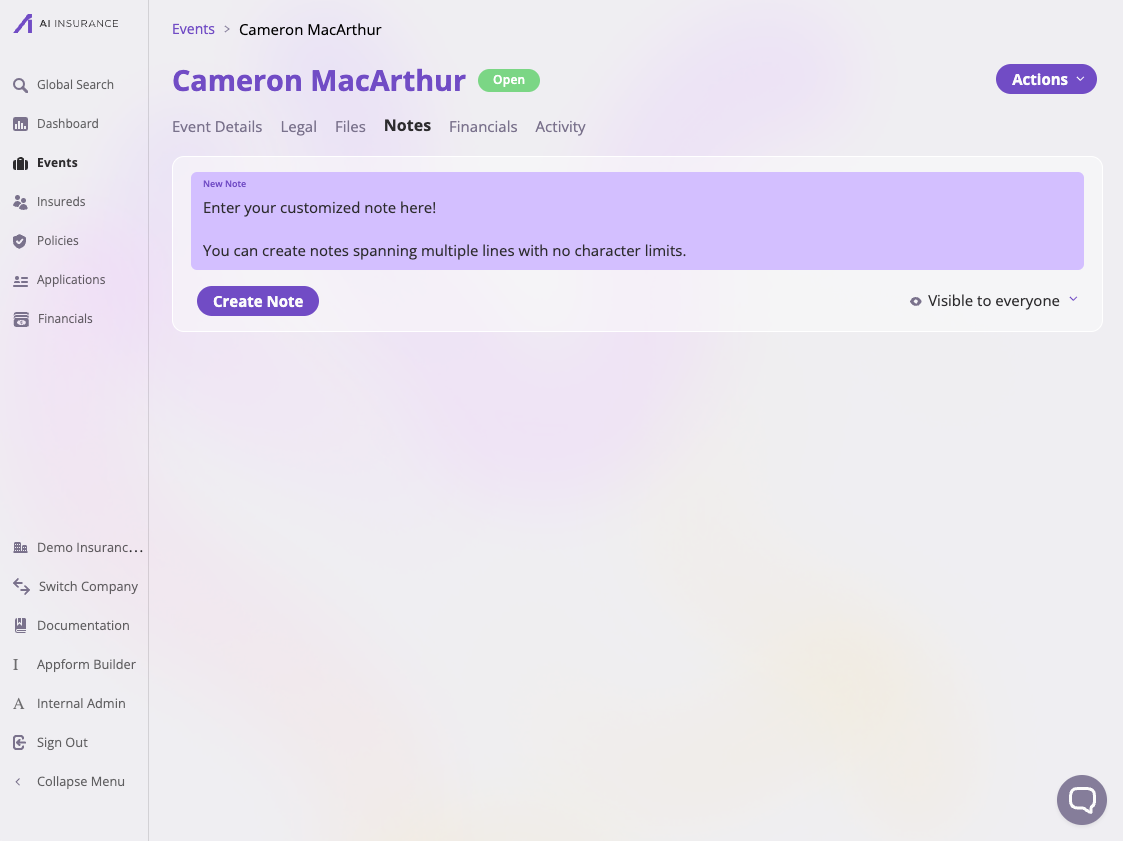
1. Navigate to the entity where you want to create the note, such as a policy, insured, or event, and click on the **Notes** tab.
2. Type your note into the provided text field in the **Notes** section of the selected entity.
## Create a Note
Take the following steps to create a note:
1. Navigate to the entity where you want to create the note, such as a policy, insured, or event, and click on the **Notes** tab.
2. Type your note into the provided text field in the **Notes** section of the selected entity.
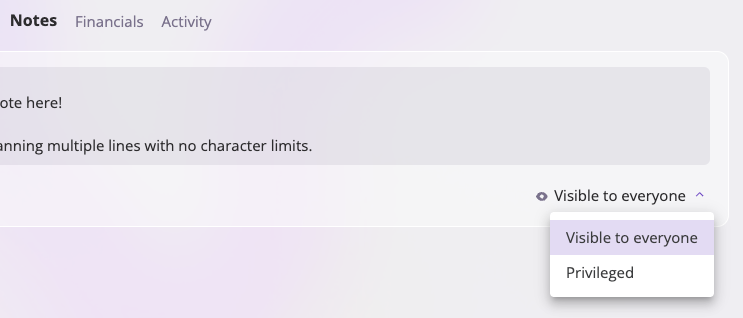
 3. After entering your note, you can set its visibility to either **Visible to everyone** or **Privileged**. **Privileged** notes are only accessible to users with the appropriate permissions, such as Carrier Admins and Event Managers. Refer to the [User Roles and Permissions documentation](/platform/companies/user-roles-and-permissions) for more details on privileges.
If you change a privileged note to be **Visible to everyone**, its contents will be visible on the activity log forever.
3. After entering your note, you can set its visibility to either **Visible to everyone** or **Privileged**. **Privileged** notes are only accessible to users with the appropriate permissions, such as Carrier Admins and Event Managers. Refer to the [User Roles and Permissions documentation](/platform/companies/user-roles-and-permissions) for more details on privileges.
If you change a privileged note to be **Visible to everyone**, its contents will be visible on the activity log forever.
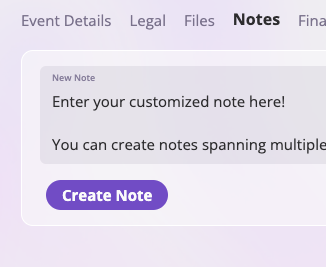
 4. Click the **Create Note** button to complete your note.
 5. Once created, your notes will appear in the **Notes** section, arranged from most recent to oldest.
 ## Edit a Note
Editing notes are ideal for updating information that changes frequently, such as statuses or numeric values, while avoiding duplicate note entries.
Any changes made to a note will be tracked in the activity log. This log tracks the user who created the changes, the time the changes were made, and the before-and-after values of the edited note.
### **How to edit a Note**
Edit a Note with the following steps:
1. Click on **Policies**, **Events**, or **Insureds** in the left sidebar to navigate to the entity that contains the note you want to edit.
2. Select the specific Policy, Insured, or Event and navigate to the **Notes** tab on this entity.
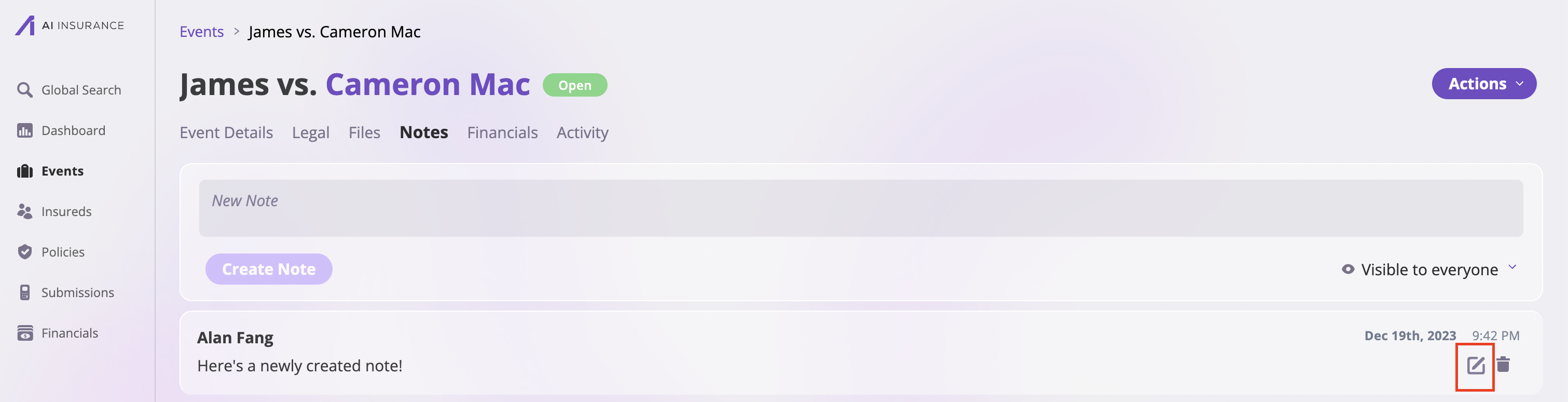
3. Locate the note you want to edit, and click the button on the note.
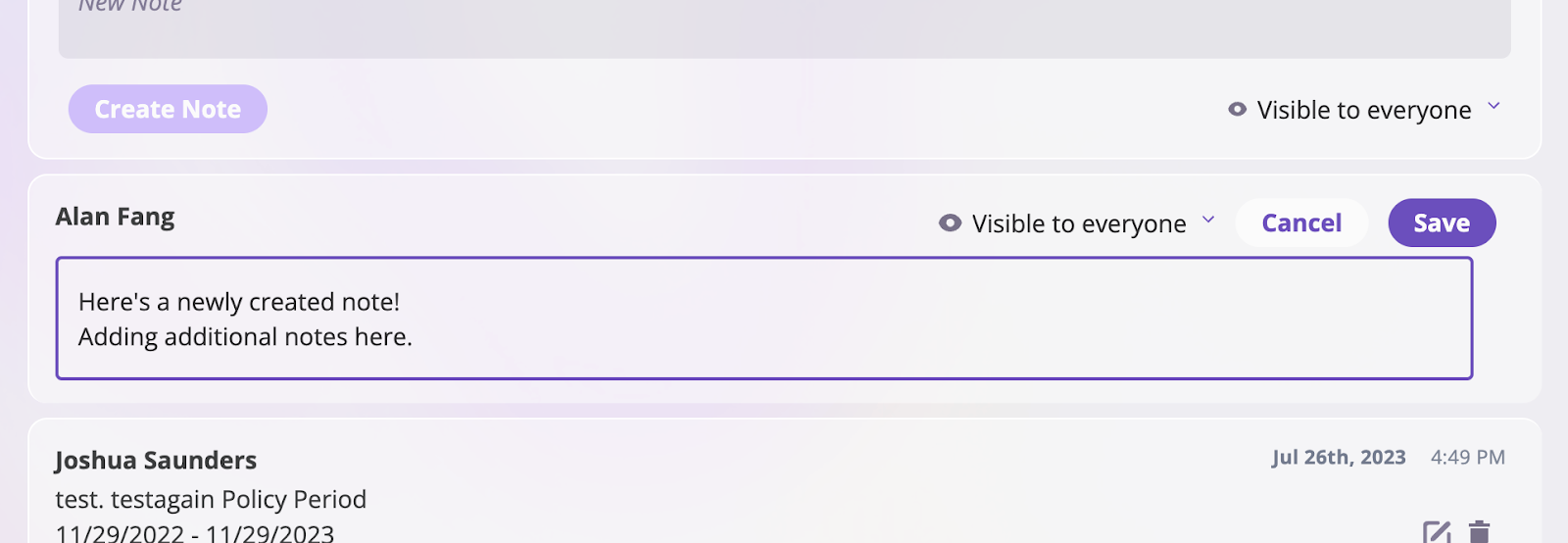
4. Make your changes to the note and click on the **Save** button to save the new changes to the note.
## Edit a Note
Editing notes are ideal for updating information that changes frequently, such as statuses or numeric values, while avoiding duplicate note entries.
Any changes made to a note will be tracked in the activity log. This log tracks the user who created the changes, the time the changes were made, and the before-and-after values of the edited note.
### **How to edit a Note**
Edit a Note with the following steps:
1. Click on **Policies**, **Events**, or **Insureds** in the left sidebar to navigate to the entity that contains the note you want to edit.
2. Select the specific Policy, Insured, or Event and navigate to the **Notes** tab on this entity.
3. Locate the note you want to edit, and click the button on the note.
4. Make your changes to the note and click on the **Save** button to save the new changes to the note.