
Overview
Financial transactions are records of all monetary activities in AI Insurance, including invoices, payments, refunds, and other financial operations. The Transactions section in Financials serves as the central hub for managing all financial records.What are Financial Transactions?
Financial transactions represent any financial activity related to policies, events, or other business operations. Common transaction types include:- Policy Invoices: Bills sent to insureds for policy premiums
- Commission Invoices: Invoices for broker commissions
- ALAE (Allocated Loss Adjustment Expense): Expenses related to claim handling
- ULAE (Unallocated Loss Adjustment Expense): Unallocated expenses related to claim handling
- Indemnity: Payments made for claims
- Claim Handling Costs: Costs associated with processing claims
- Retention: Amounts retained by the carrier
- Coverage Expense: Expenses related to coverage
- Transaction Type: The type of financial transaction
- Status: Current status (Approved, Paid, Owed, or Void)
- Event: Associated event (if applicable)
- Payee: The party receiving or making the payment
- Invoice Date: Date the invoice was created
- Invoice Number: Reference number for the invoice
- Due Date: When the transaction is due
- Paid Date: Date payment was received (if applicable)
- Memo: Additional notes or descriptions
- Amount: The transaction amount
Accessing the Transactions Section
To view and manage financial transactions:- Navigate to Financials in the sidebar
- Click on the Transactions tab
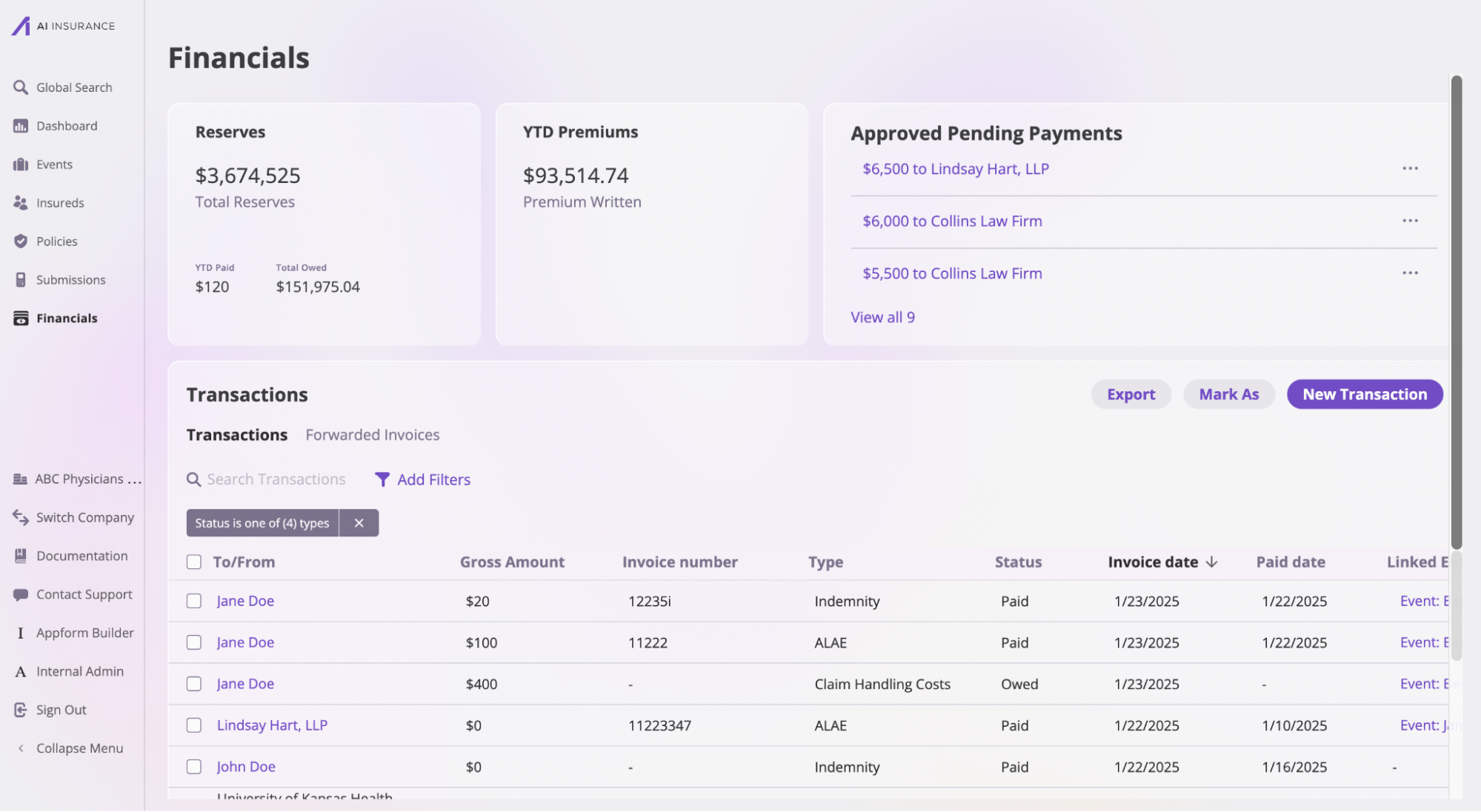
Creating a Manual Financial Transaction
You can manually create financial transactions when you need to record invoices, payments, or other financial activities that aren’t automatically generated by the system.Step 1: Navigate to Transactions
- Go to Financials in the sidebar
- Click on the Transactions tab
Step 2: Create a New Transaction
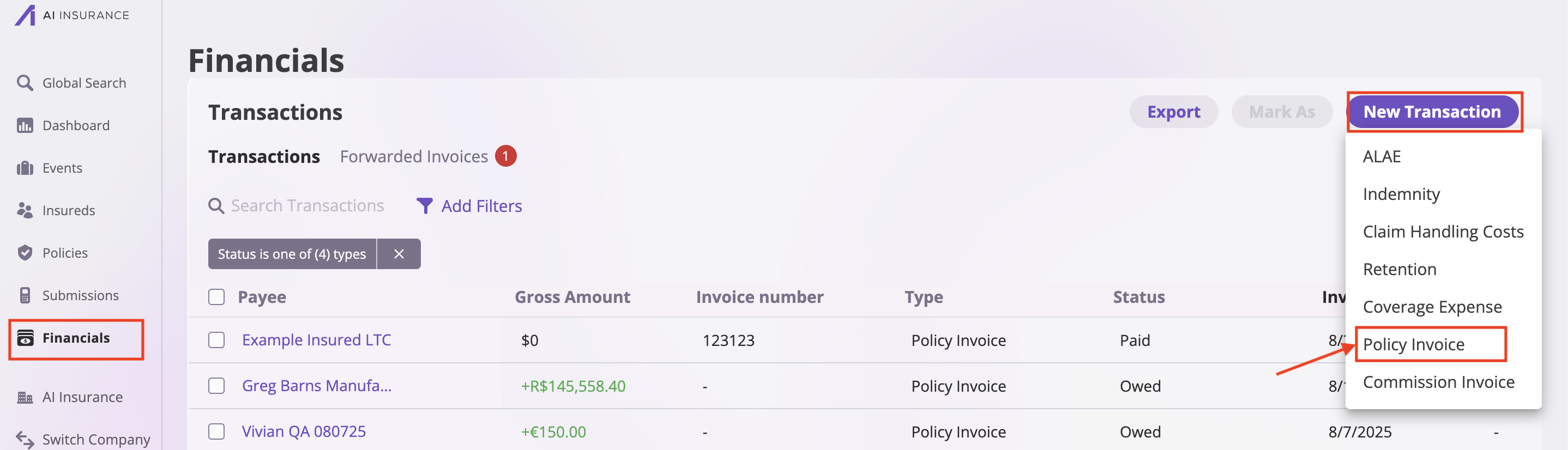
- Click the “New Transaction” button in the top right corner
- A dropdown menu will appear with available transaction types
Step 3: Select Transaction Type
Select the appropriate transaction type from the dropdown menu:- Policy Invoice: For billing insureds for policy premiums
- Commission Invoice: For broker commission invoices
- ALAE: For allocated loss adjustment expenses
- ULAE: For unallocated loss adjustment expenses
- Indemnity: For claim indemnity payments
- Claim Handling Costs: For claim processing costs
- Retention: For retention amounts
- Coverage Expense: For coverage-related expenses
Step 4: Fill in Transaction Details
After selecting a transaction type, a form will open where you can enter the following information: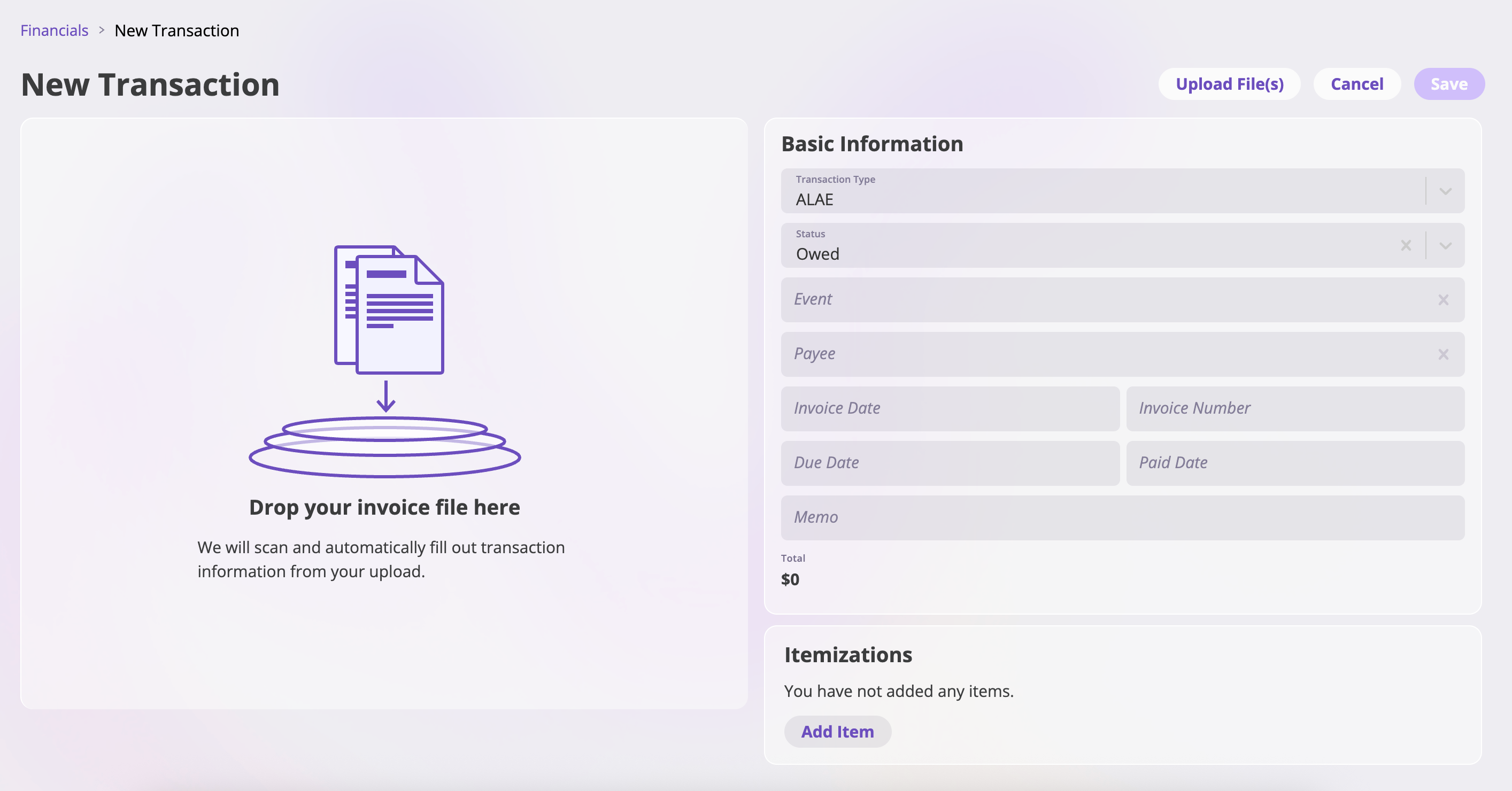
- Transaction Type: The type of transaction (pre-selected from Step 3, but can be changed)
- Status: The current status of the transaction. Default is typically “Owed” for invoices
- Options: Approved, Paid, Owed, or Void
- Event: (Optional) Link to an associated event
- Payee: The party receiving or making the payment
- Invoice Date: The date the invoice was created
- Invoice Number: Reference number for the invoice
- Due Date: When the transaction is due
- Paid Date: (Optional) Date payment was received
- Memo: Additional notes, descriptions, or reference information
- Amount: The transaction amount (defaults to $0)
Step 5: Save the Transaction
- Review all entered information
- Click “Save” or “Create Transaction” to finalize