
Step 1: Navigate to Policies
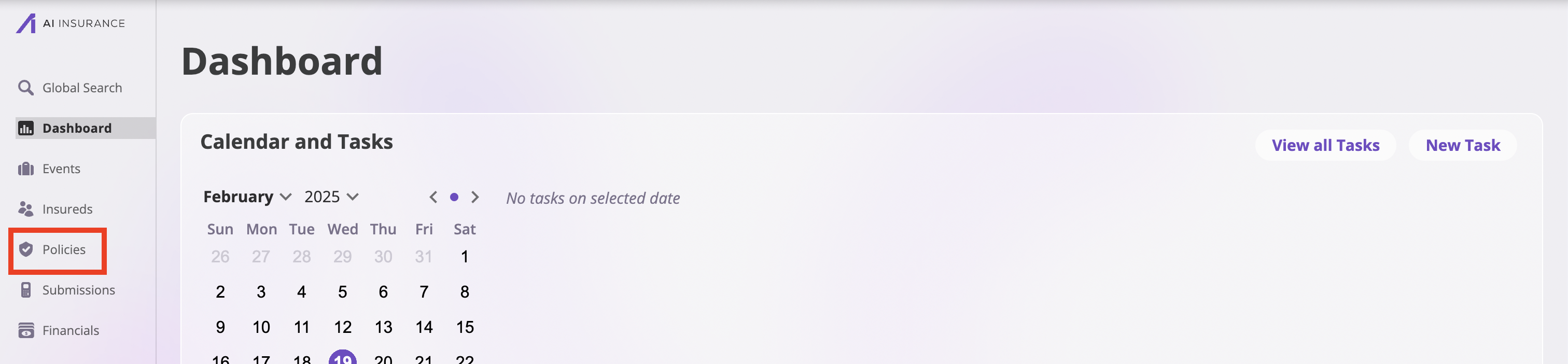
- Click the Policies tab in the sidebar to open the Policies page.
Step 2: Find and Select the Policy
- Use the search functionality or browse through the list to find the policy you want to endorse.
- Click on the policy to open its details page.
Step 3: Start the Endorsement Process
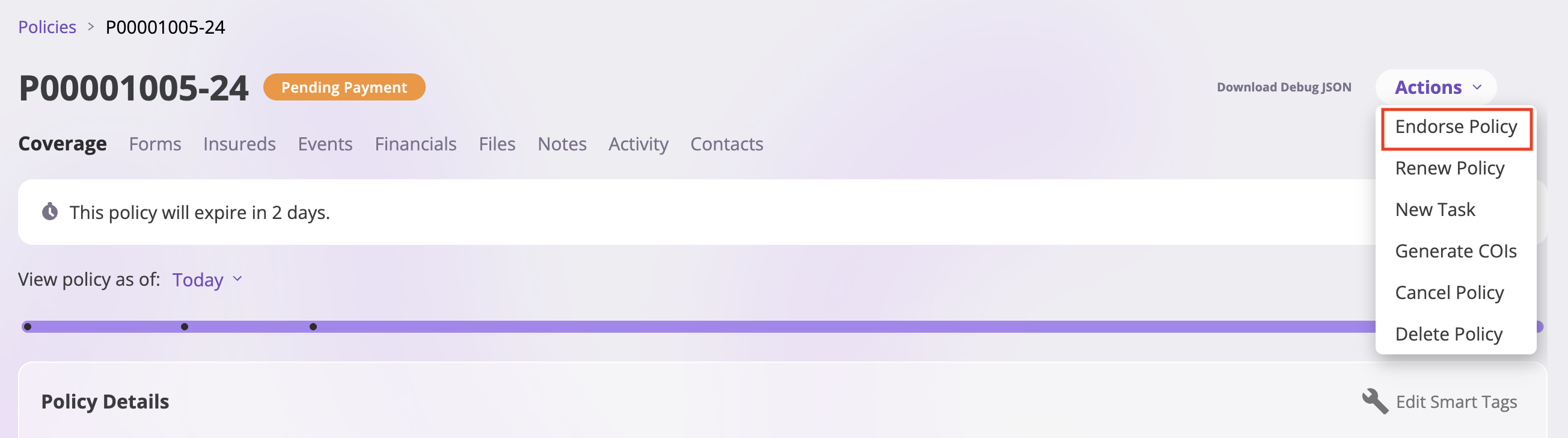
- On the policy details page, locate the Actions dropdown in the top-right corner.
- Click the Actions dropdown to view available options.
- Select Endorse Policy from the dropdown menu.
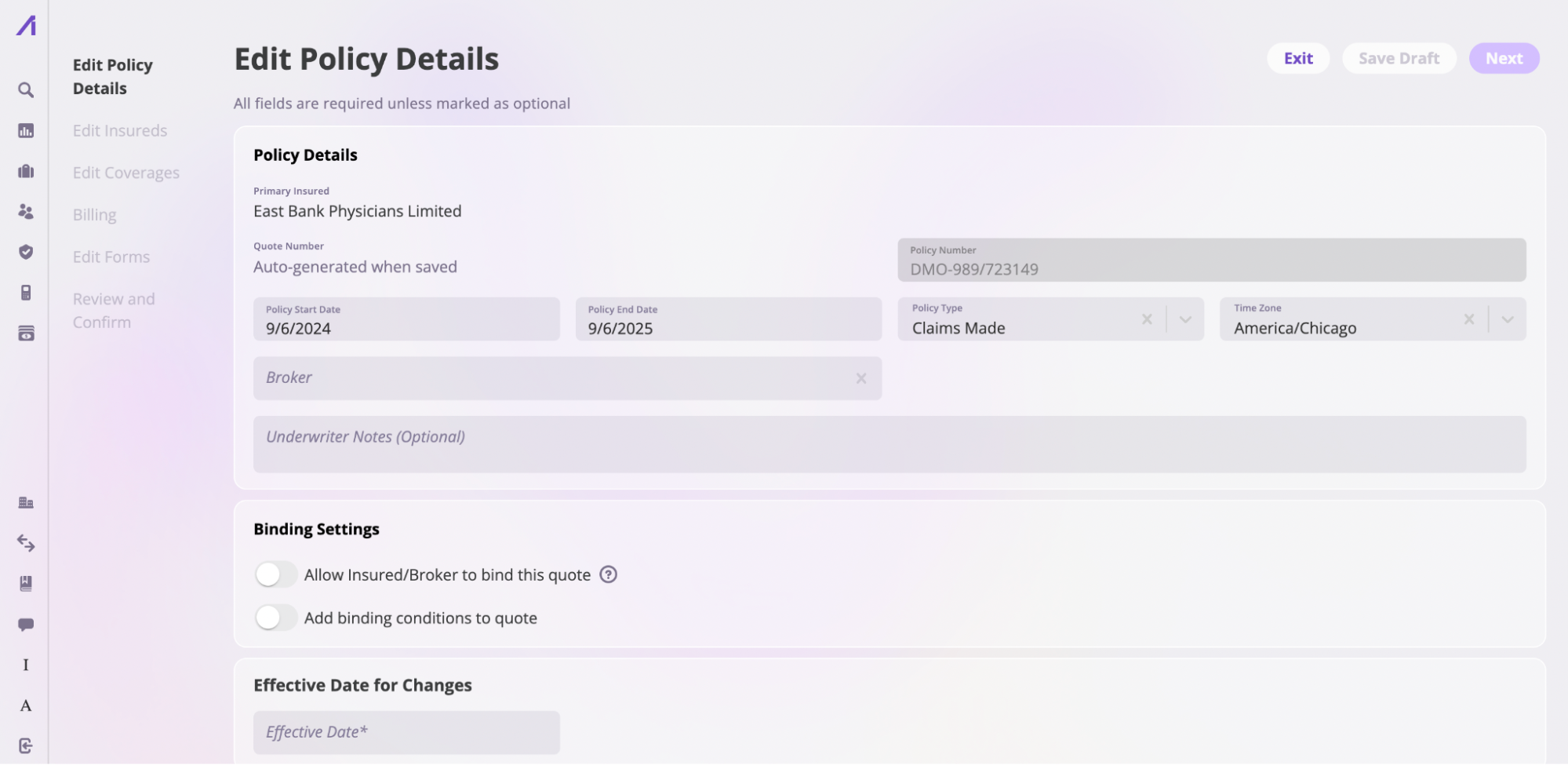
Step 4: Endorse Policy Details
The first section allows you to update basic policy information.-
Review and update policy information as needed:
- Start and end dates
- Policy type
- Timezone
- Broker information
- Other policy-level details
- Important: Specify the Effective Date for Changes. The Next button will remain inactive until you enter this date.
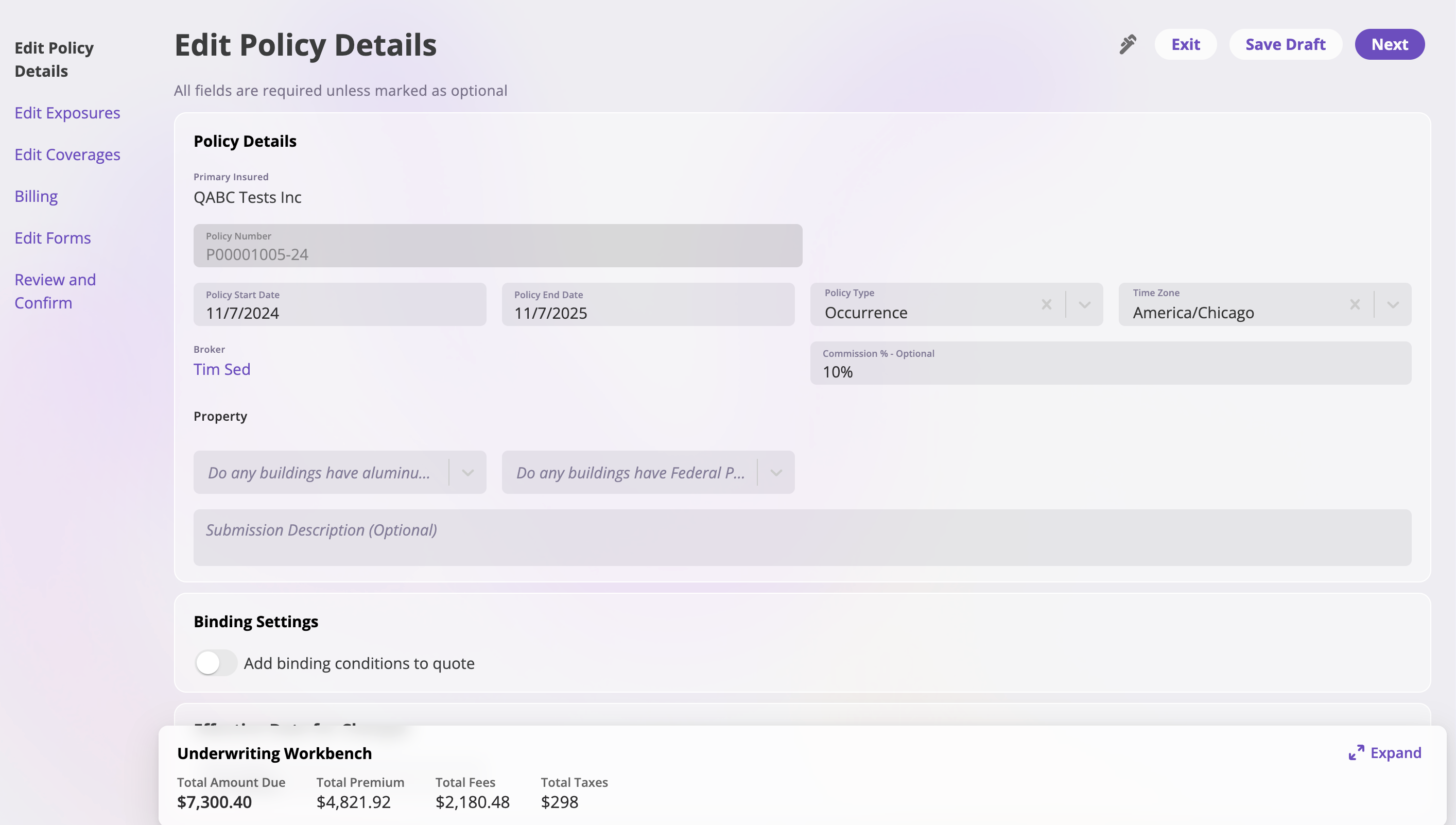
- Click Next to proceed to the next section once you’ve completed all required fields.
Step 5: Edit Exposures
In this section, you can manage the exposures (insured parties) associated with the policy.- Add Exposures: Click the Add Exposure button to include new insured parties to the policy.
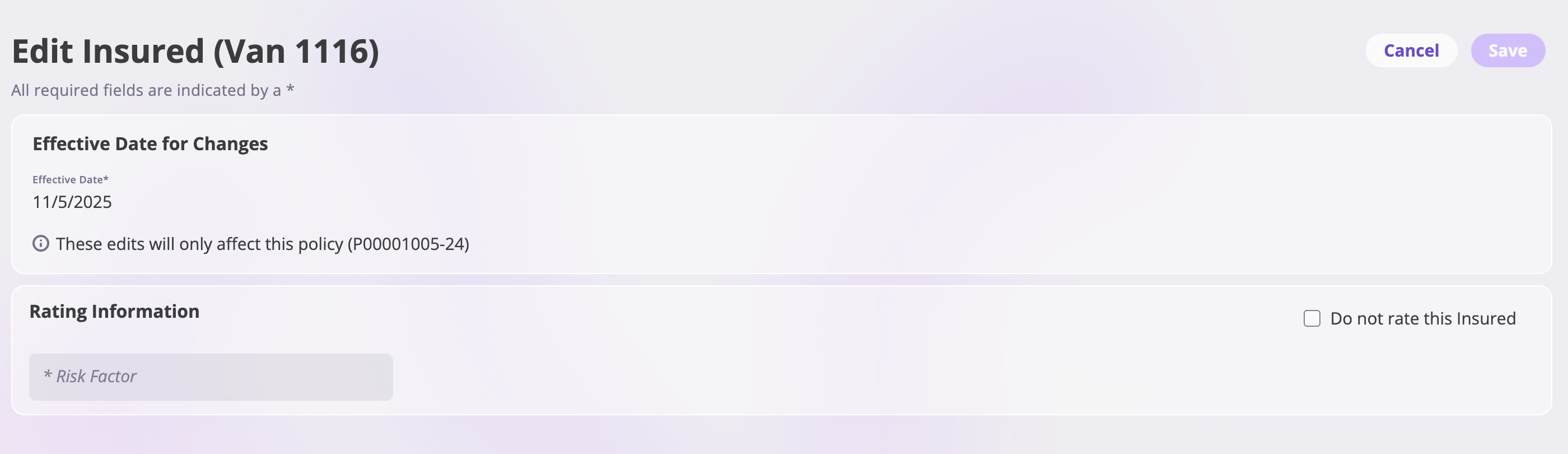
- Edit Exposure Details: Click the edit icon next to an exposure to edit its details. This will open the Edit Insured page where you can:
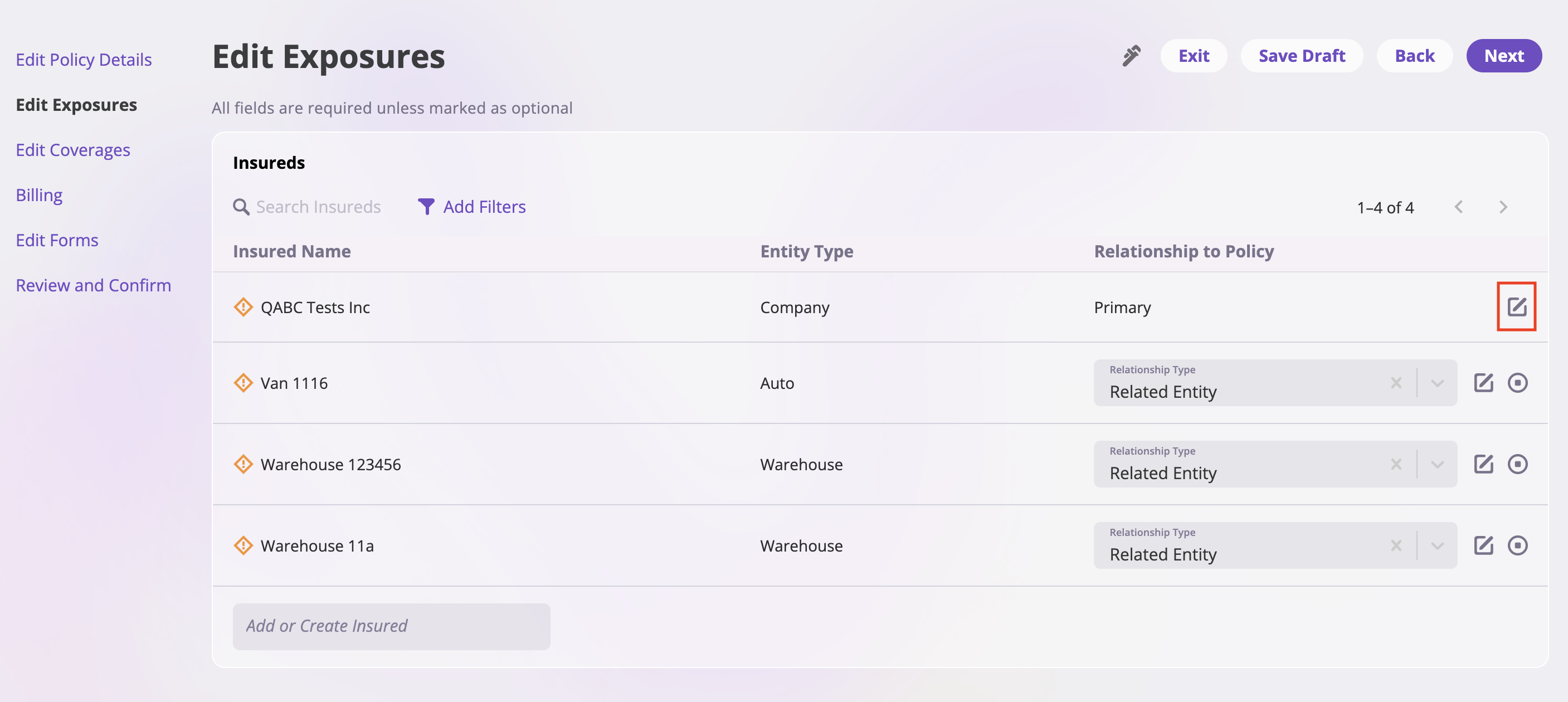
- Set Effective Date for Changes: Enter the effective date for the changes (required field, indicated by *). Note that these edits will only affect the specific policy being endorsed.
- Rating Information:
- Risk Factor: Enter the risk factor value (required field, indicated by *)
- Do Not Rate: Check the “Do not rate this Insured” checkbox if you want to exclude this exposure from rating calculations
- Exposure Information: Update exposure details, relationships, and other exposure-specific attributes
- Terminate or Resume Exposure Relationship:
- Click the pause icon to terminate an exposure’s relationship with the policy
- Click resume to restore the exposure’s relationship with the policy
- Review all exposure changes to ensure accuracy.
- Click Next to proceed.
Step 6: Edit Coverages
This section allows you to manage coverage lines, limits, and policy aggregates.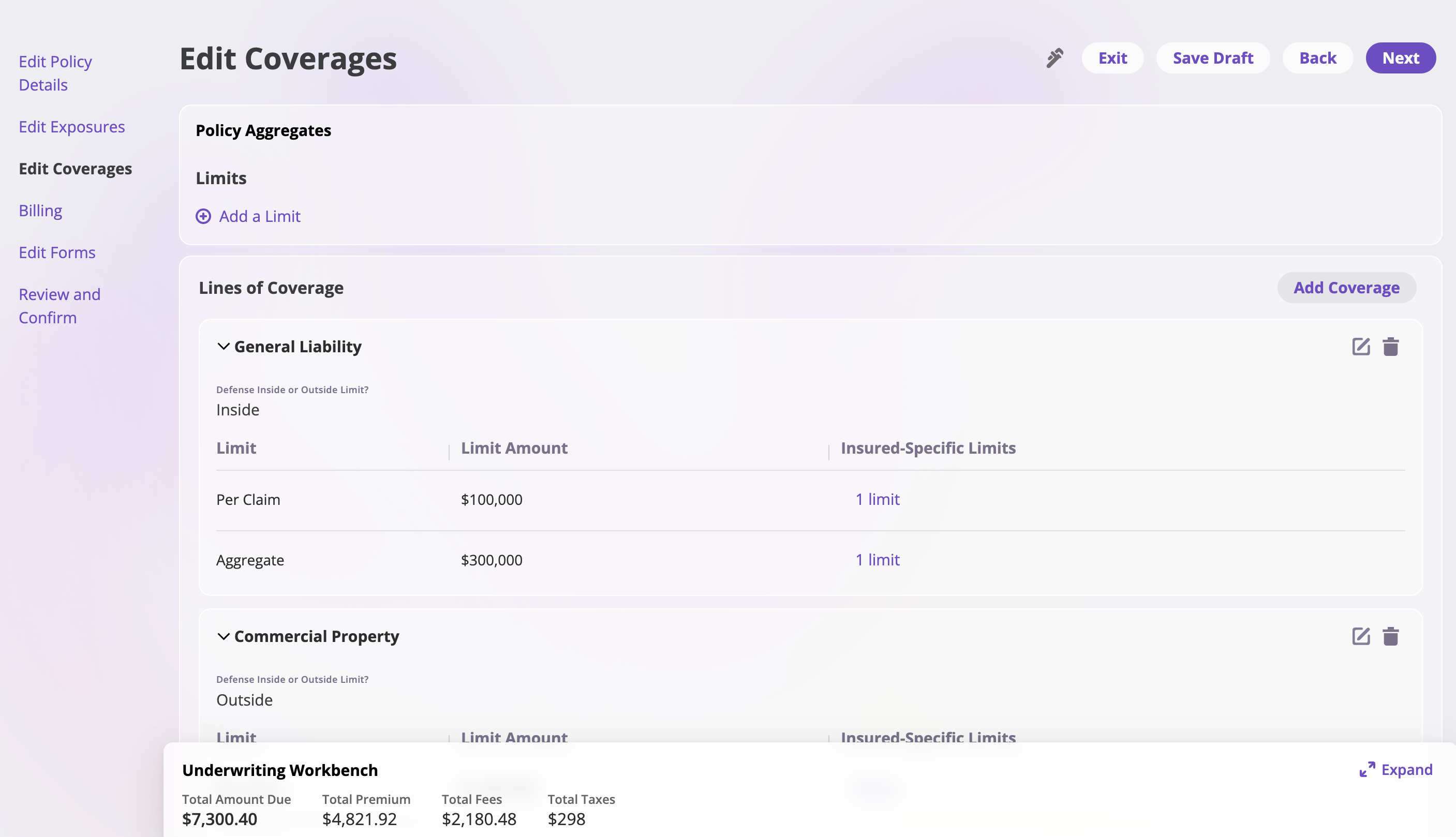
Policy Aggregates
- Manage Limits: In the Policy Aggregates section, you can:
- View existing limits configured for the policy
- Click Add a Limit to create new policy-level limits
Lines of Coverage
-
Add Coverage Lines:
- Click the Add Coverage button to include new coverage lines (e.g., General Liability, Commercial Property) to the policy
-
Edit Coverage Details: Click the edit icon next to a coverage line to open the Edit Coverage page. On this page, you can configure:
- Line of Coverage: Select or view the coverage type (e.g., General Liability, Commercial Property)
- Preset: Choose from preset coverage configurations (e.g., “300K”) if available
- Defense Limits: Select whether defense is “Inside” or “Outside” the limit using the radio buttons
- Limits:
- Per Claim Limit: Set the maximum amount per individual claim (e.g., $100,000)
- Aggregate Limit: Set the total maximum amount for all claims (e.g., $300,000)
- Insured-Specific Limits: Check “Use separate limits for specific insureds” to configure limits for specific exposures. Click View/Edit to manage these limits.
- Deductibles: Check “Add Deductible to this Line of Coverage” to add a deductible requirement
- Retroactive Dates:
- Set a retroactive date if applicable
- Optionally check “Use separate retroactive dates for specific insureds” to set different dates per exposure
- Prior and Pending Litigation Dates: Enter a prior or pending litigation date if required
- Remove Coverage Lines: Click the delete icon next to a coverage line to remove it from the policy
Note: To change coverage limits, see the Changing Coverage Limits documentation.
- Review all coverage changes to ensure accuracy.
- Click Next to proceed.
Step 7: Billing
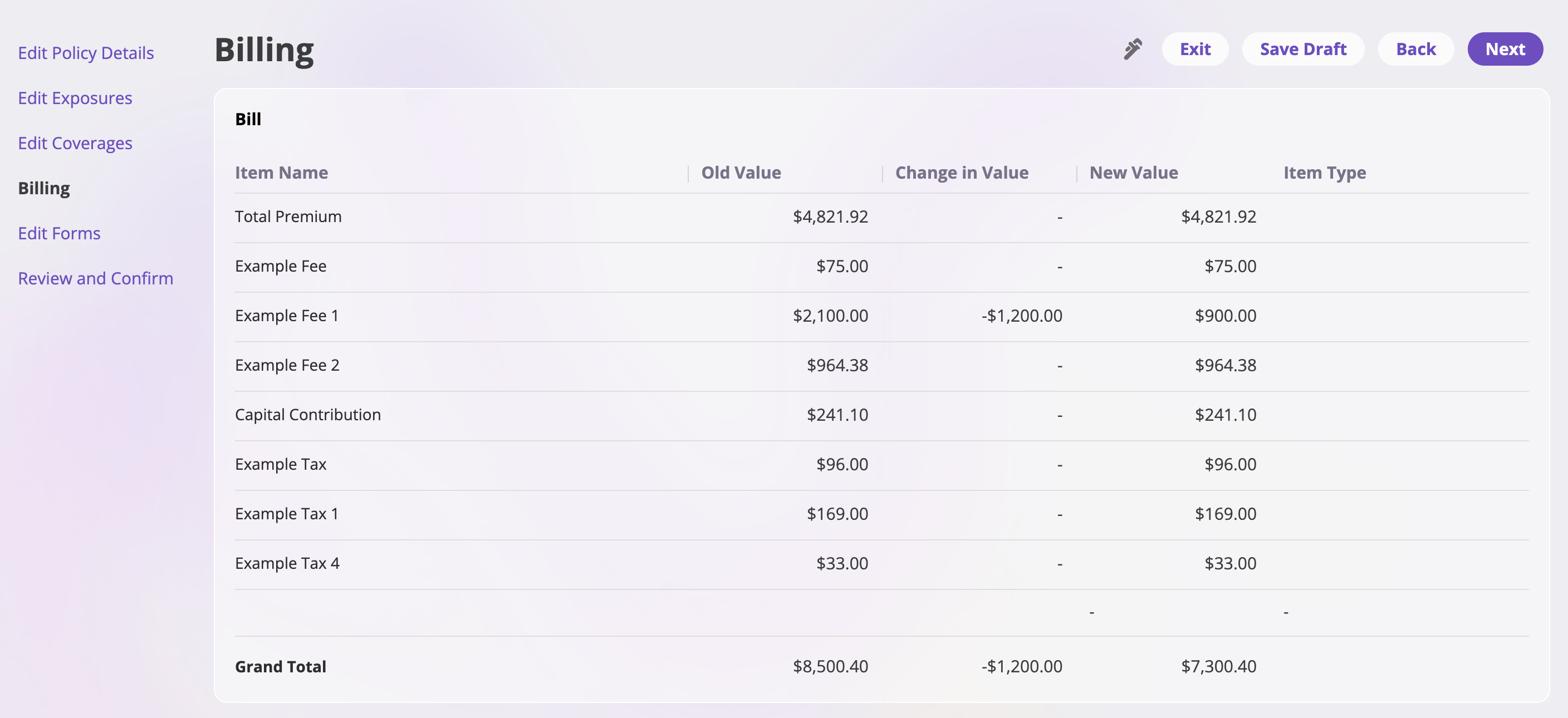
The Billing page displays a summary of all financial changes resulting from the endorsement.- Review Financial Changes: The billing table shows:
- Item Name: The name of each financial item
- Old Value: The original amount before the endorsement
- Change in Value: The difference in amount (can be positive or negative)
- New Value: The updated amount after the endorsement
- Item Type: The category of each item
- Click Next to proceed.
Step 8: Edit Forms
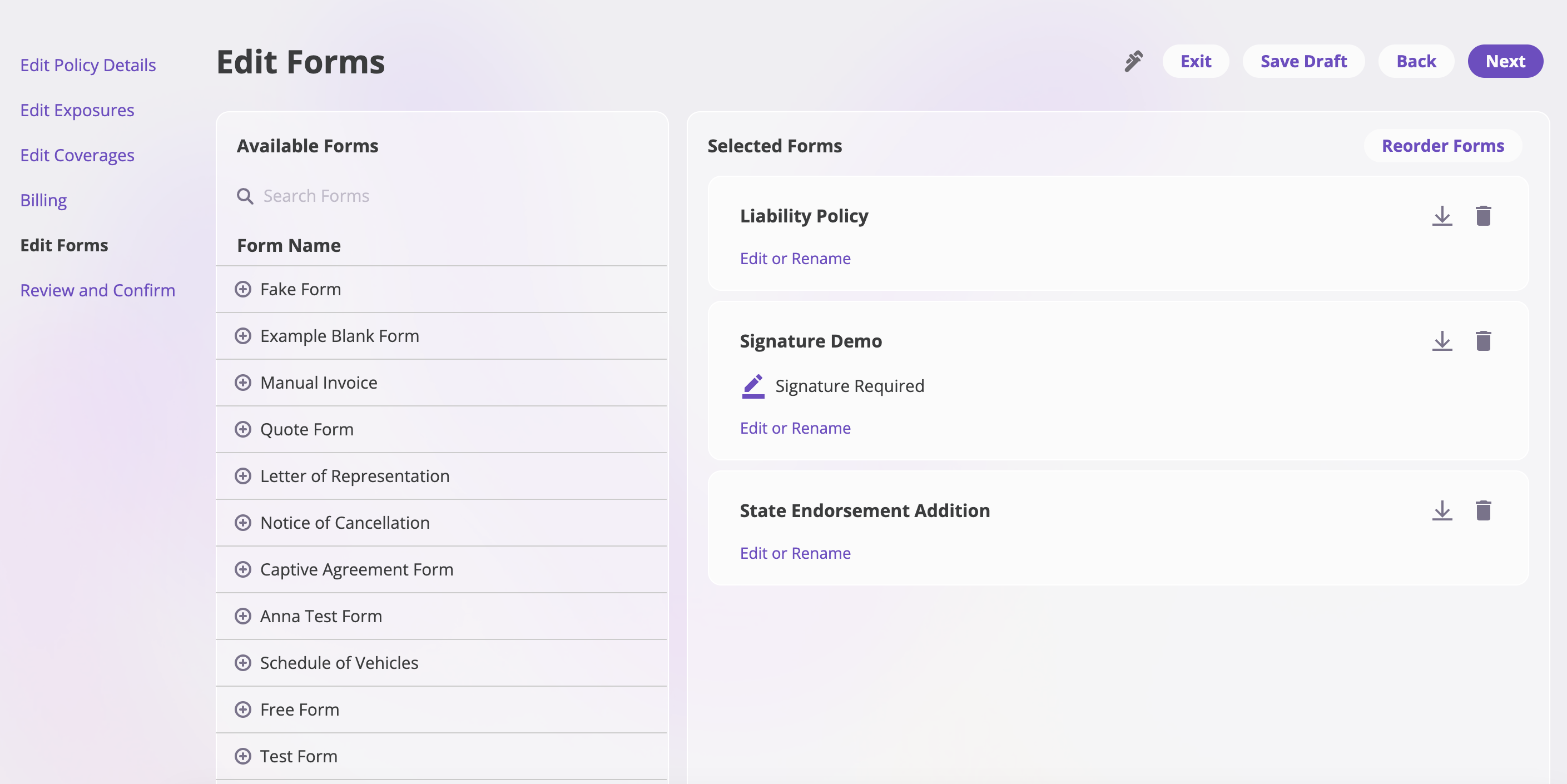
Manage the forms attached to the policy during the endorsement.- Add Forms: Click Add Form to attach new forms to the policy.
- Remove Forms: Select a form and click Remove to detach it from the policy.
- Review the forms list to ensure all necessary forms are included.
- Click Next to proceed.
Step 9: Review and Confirm
The final section allows you to review all changes before confirming the endorsement.-
Review Changes: Carefully review all modifications you’ve made across:
- Policy details
- Exposures
- Coverages
- Billing and financial changes
- Forms
-
Confirm Endorsement: When you’re ready to finalize the endorsement:
- Click the Confirm Endorsement button.
- The Confirm Endorsement modal will appear.
-
Enter Recipient Information: In the modal:
- Input the primary recipient’s email address.
- Optionally, add additional email addresses for other recipients who should receive notification of the endorsement.
- Click Confirm to complete the endorsement process.
What Happens Next?
After confirming the endorsement:- The policy will be updated with all your changes.
- Email notifications will be sent to the specified recipients.
- The endorsement will be recorded in the policy’s activity history.
- You can view the updated policy details in the Policies section.
By following these steps, you can successfully update an existing policy to reflect any required changes through the endorsement process.